Full Backups
Full backups provide the most comprehensive protection of data. When you perform a full backup of the default subclient, the system performs a discover on the partition(s) and executes a full backup of:
-
All the databases that are already configured within the subclient.
-
Non-configured databases within the discovered partition(s).
Use the following steps to perform a full backup:
-
From the CommCell Console navigate to Client Computers | <Client> | Notes Database | <Partition>.
-
In the right-pane, right-click the <Subclient> and click Backup.
-
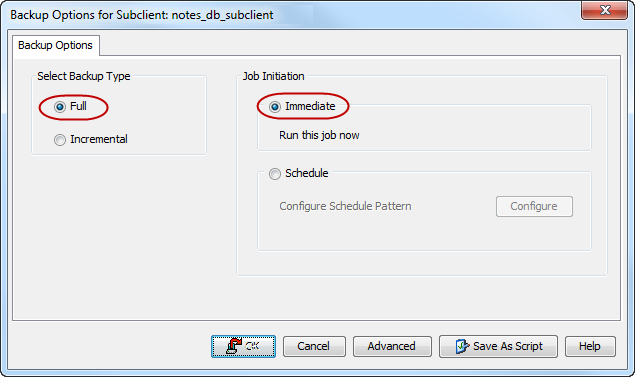
Select Full as backup type and Immediate to run the job immediately.
-
Click OK.
You can track the progress of the job from the Job Controller or Event Viewer window. When the backup has completed, the Job Controller displays Completed.
Incremental Backups
When you perform an incremental backup of the default subclient, the system performs a discover on the partition(s) and executes a backup of:
-
Non-configured databases within the discovered partition(s).
-
Any database manually added since the last backup.
-
Any previously backed up databases where the Database Instance ID (DBIID) has changed since the last backup.
-
Non-logged databases that have been modified since the last backup.
Note
Logged database is not backed up using the incremental backup. All the changes in a logged database are backed up using the transaction log subclient.
An incremental backup contains only data that is new or has changed since the last backup, regardless of the type. On average, incremental backups consume less media and use less resources than full backups.
The illustration clarifies the nature of full and incremental backups.
Follow steps given below to perform an incremental backup:

-
From the CommCell Console navigate to Client Computers | <Client> | Notes Database | <Partition>.
-
In the right-pane, right-click the <Subclient> and click Backup.
-
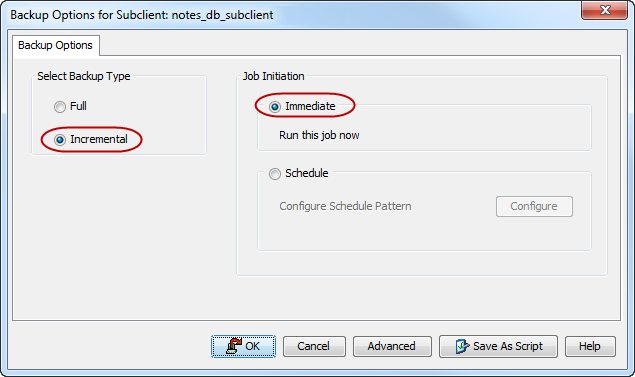
Select Incremental as backup type and Immediate to run the job immediately.
-
Click OK.
You can track the progress of the job from the Job Controller. When the backup has completed, the Job Controller displays Completed.
Backing Up the Domino System Files
You can use the Notes Database Agent to back up the Domino system files, such as NLO files, server ID, and notes.ini files.
Before You Begin
Assign Domino system files to a user-defined subclient.
Procedure
-
In the CommCell Browser, click Client Computers > client > Notes Database > partition.
-
Right-click the subclient that contains the Domino system files, and then click Backup.
The Backup Options for Subclient dialog box appears.
-
In the Select Backup Type pane, choose the type of backup:
-
To run a full backup, select Full.
-
To run an incremental backup, select Incremental.
-
-
In the Job Initiation pane, run the backup now or schedule it.
For information on configuring a backup schedule, see Schedule backups.
-
Click OK.
To monitor the progress of your backup job, see Job Controller.
After the backup job is complete, you can view the backup job history.
For more information, see Job History.
Scheduling Backup from a Partition
On performing a backup job from the partition level, all the subclients of the selected partition are backed up. You can either perform a full or an incremental backup.
On performing a full backup:
-
New databases that are not yet configured for backup are added to the default subclient.
-
All the databases that are already part of this partition are backed up.
-
After a full backup, each subclient in the partition is represented in the Backup History.
On performing an incremental backup:
-
New databases that are not yet configured for backup are added to the default subclient.
-
Any database manually added since the last backup.
-
Any previously backed up databases where the Database Instance ID (DBIID) has changed since the last backup.
-
Non-logged databases that have been modified since the last backup.
Use the following steps to backup all the subclients present in a partition:
-
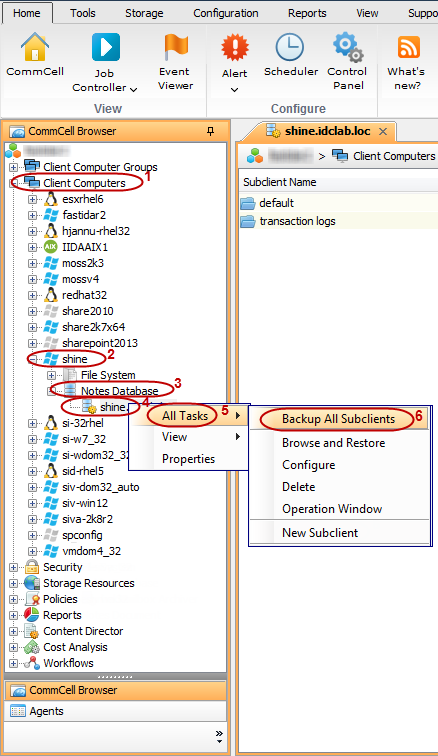
From the CommCell Browser, navigate to Client Computers | <Client> | Notes Database.
-
Right-click <Partition> and click All Tasks | Backup All Subclients.
-
Click Yes to confirm.
Note
Transaction logs are not backed up in this case. For more information about backing up the transaction logs, see the "Scheduling Backup from the Transaction Logs Subclient" section on this page.
-
Select the appropriate options from Backup Type and Job Initiation.
-
Click OK.
Scheduling Backup from the Transaction Logs Subclient
Note
To backup from the transaction log subclient, you must have Domino configured in the Archive logging mode.
The Notes Database iDataAgent creates a transaction log subclient that handles backing up transaction logs for all databases within the partition. You can only perform incremental backup jobs for a transaction log subclient. When you perform an incremental backup, the system backs up all the full log extents.
For Domino versions 5.0.4 and above, the active log extent is backed up as well. Any changes in the database is logged and backed up by the transaction log subclient.
You can specify database log only backups to start when the log files on the disk reach a specified percentage of the disk or the number of log files on the disk matches the specified number. For more information on automatic log backup schedule policies, see Creating an Automatic Schedule for Database Log Backups.
Use the following steps to backup the transaction logs:
-
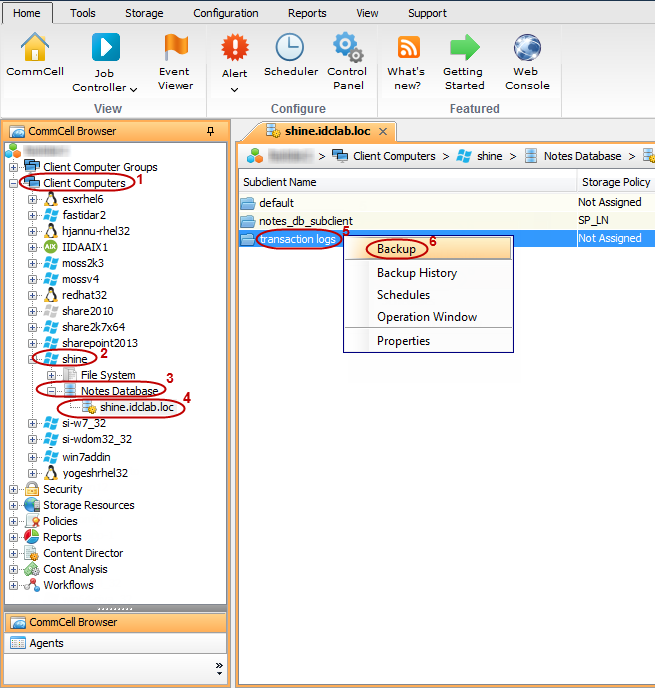
From the CommCell Browser, navigate to Client Computers | <Client> | Notes Database | <Partition>.
-
Right-click Transaction Logs, and then click Backup.
-
Click OK to perform an incremental backup for transaction logs.
Scheduling a Backup
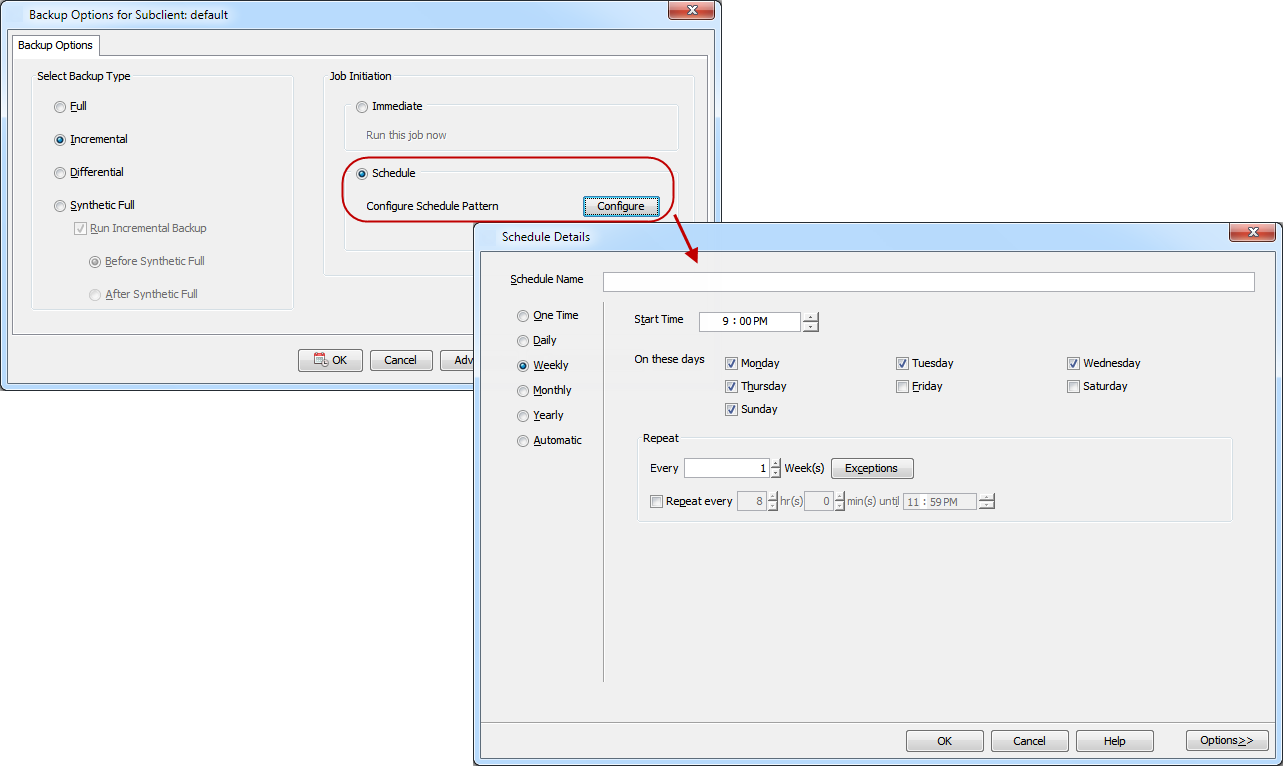
Follow the steps below to schedule a backup:
-
From the CommCell Console navigate to Client Computers | <Client> | Notes Database | <Partition>.
-
In the right-pane, right-click the <Subclient> and click Backup.
-
Click Schedule.
-
Click Configure.
-
Select the appropriate scheduling options. For example:
-
Click Weekly.
-
Check the days you want the run the restore job.
-
Change the Start Time to 9:00 PM.
-
Click OK to close the Schedule Details dialog box.
-
Click OK to close the Backup Options dialog box.
The backup job will execute as per the schedule.
-
See Scheduling for a comprehensive information on scheduling jobs.
Managing Jobs
Jobs can be managed in a number of ways. See Job Management for a comprehensive information on managing jobs.
The following sections provide information on the different job management options available:
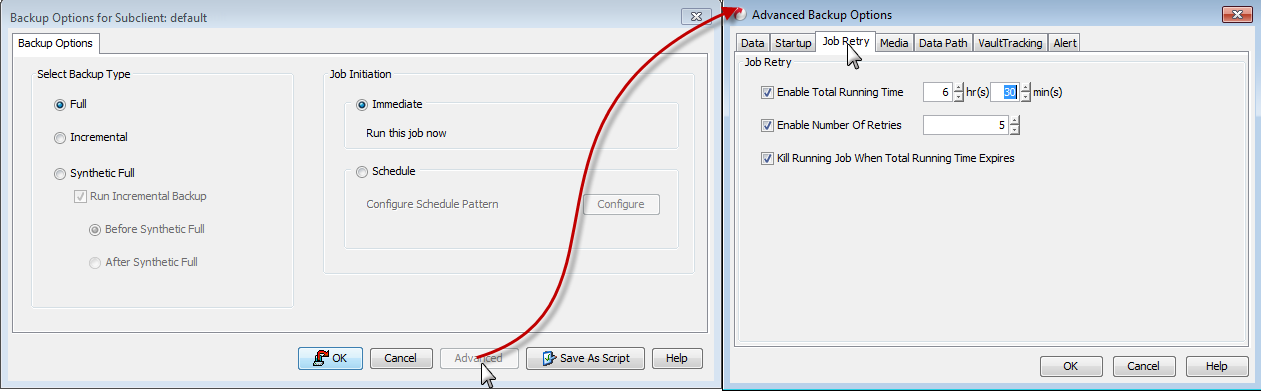
Configure Job Restartability for an Individual Job
-
From the CommCell Console navigate to Client Computers | <Client> | Notes Database | <Partition>.
-
In the right-pane, right-click the <Subclient> and click Backup.
-
Click Advanced.
-
In the Advanced Backup Options dialog box, click the Job Retry tab.
-
Select Enable Total Running Time and specify the maximum elapsed time before a job can be restarted or killed.
Select Kill Running Jobs When Total Running Time Expires to kill the job after reaching the maximum elapsed time.
-
Select Enable Number Of Retries and specify the number of retries.
-
Click OK.
Controlling Jobs
The following controls are available for running jobs in the Job Controller window:
|
Suspend |
Temporarily stops a job. A suspended job is not terminated; it can be restarted at a later time. |
|
Resume |
Resumes a job and returns the status to Waiting, Pending, Queued, or Running. The status depends on the availability of resources, the state of the Operation Windows, or the Activity Control setting. |
|
Kill |
Terminates a job. |
Suspending a Job
-
From the Job Controller of the CommCell Console, right-click the job and select Suspend.
-
The job status may change to Suspend Pending for a few moments while the operation completes. The job status then changes to Suspended.
Resuming a Job
-
From the Job Controller of the CommCell Console, right-click the job and select Resume.
-
As the Job Manager attempts to restart the job, the job status changes to Waiting, Pending, or Running.
Killing a Job
-
From the Job Controller of the CommCell Console, right-click the job and select Kill.
-
Click Yes when the confirmation prompt appears if you are sure you want to kill the job. The job status may change to Kill Pending for a few moments while the operation completes. Once completed, the job status will change to Killed and it will be removed from the Job Controller window after five minutes.
Additional Options
The following table describes the available additional options to further refine your backup operations:
|
Option |
Description |
Related Topics |
|
Startup Options |
The Startup Options are used by the Job Manager to set priority for resource allocation. This is useful to give higher priority to certain jobs. You can set the priority as follows:
|
|
|
Alerts |
This option enables users or user groups to get automatic notification on the status of the data protection job. Follow the steps given below to set up the criteria to raise notifications/alerts:
|
Refer to Alerts. |
|
Command Line Backups |
Command Line Interface enables you to perform backups or restore from the command line. The commands can be executed from the command line or can be integrated into scripts. You can also generate command line scripts for specific operations from the CommCell Browser using the Save As Script option. |
Refer to Command Line Interface. |
|
CommCell Readiness Report |
The CommCell Readiness Report provides you with vital information such as connectivity and readiness of the Client, MediaAgent, and CommServe. It is useful to run this report before performing a backup or a recovery operation. Follow the steps given below to generate the report:
|
Refer to CommCell Readiness Report. |
|
Backup Job Summary Report |
The Backup Job Summary Report provides you with information about all of the backup jobs that are run in last 24 hours for a specific subclient. You can get information such as status, time, data size, and so on for each backup job. It is useful to run this report after performing the backup. Follow the steps given below to generate the report:
|
Refer to Backup Job Summary Report. |
|
Data Path Options |
Data Protection operations use a default Library, MediaAgent, Drive Pool, and Drive as the Data Path. You can use this option to change the data path if the default data path is not available. Follow the steps given below to change the default data path:
|
Refer to Change Data Path. |
|
Start New Media |
The Start New Media option enables you to start the data protection operation on a new media. This feature provides control over where the data physically resides. Use the following steps to start the data protection operation on a new media:
|
Refer to Start New Media. |
|
Mark Media Full on Success |
This option marks the media as full, two minutes after the successful completion of the data protection job. This option prevents another job from writing to this media. Follow the steps given below:
|
Refer to Export Media. |
|
Allow Other Schedules To Use Media Set |
The Allow Other Schedules to use Media Set option allows jobs that are part of the schedule or schedule policy and using the specific storage policy to start a new media. It also prevents other jobs from writing to the same set of media.
|
Refer to Creating an Exportable Media Set. |
|
Extended Data Retention |
This option allows you to extend the expiration date of a specific job. This will override the default retention set at the corresponding storage policy copy. Follow the steps given below to extend the expiration date:
|
Refer to Extended Retention Rules. |
|
Vault Tracker |
This feature provides the facility to manage media that is removed from a library and stored in offsite locations. Depending on your Vault Tracker setup, select the required options. Use the following steps to access and select the Vault Tracker options.
|
Refer to Vault Tracker. |