Terminology
This agent uses the following entities to manage backup and restore operations from the CommCell Console.
Agent: Defines the Exchange Server to be backed up.
Backup Set: Facilitates security settings for all subclients to be backed up.
Subclient: Defines the public folders and the filtering criteria that will be used for backups.
Adding Public Folders to Backups
You can add additional public folders to backups as follows:
-
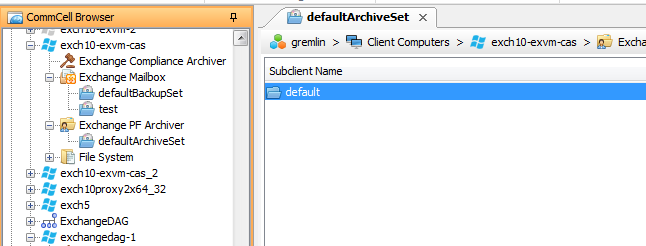
From the CommCell Browser, navigate to Client Computers | client | Exchange Public Folder | defaultBackupSet.
-
Right-click the default subclient and then click Properties.
-
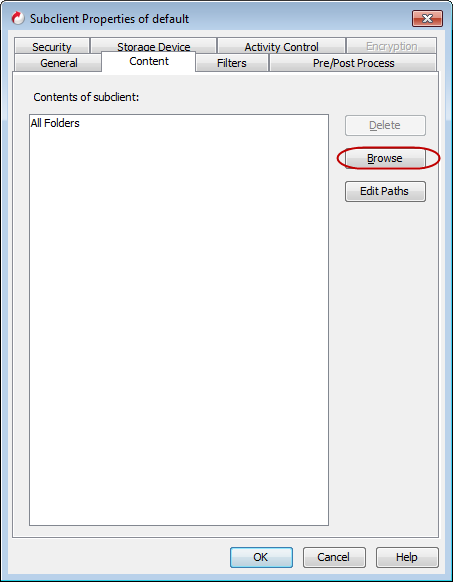
Click the Content tab and then click Browse.
-
Select the folders you want to back up and then click Add.
-
Click Yes to confirm and then click Close.
-
Click OK.
Grouping Public Folders into User-Defined Subclients
The Exchange Public Folder Agent provides the facility to divide your backups across a select grouping of public folders. This is accomplished by creating User-Defined Subclients, each of which can contain any combination of public folders. Distributing the public folders using subclients can help improve backup performance and provide flexibility for scheduling data protection operations. Any content that is not assigned to a user-defined subclient remains as content in the default subclient.
-
From the CommCell Browser, right-click the backup set on the source client, and click All Tasks | New Subclient.
-
Enter a new subclient name in the General tab.
-
Select a Storage Policy for the new subclient and click OK.
-
Specify if a backup schedule should be associated to the new subclient and click OK.
-
Right-click the subclient and select Properties.
-
Click the Content tab and then click Browse.
-
Select the folders you want to back up and then click Add.
-
Click Yes to confirm andthen click Close.
-
Click OK.
Filtering Specific Folders from Backups
-
From the CommCell Browser, right-click a subclient and click Properties.
-
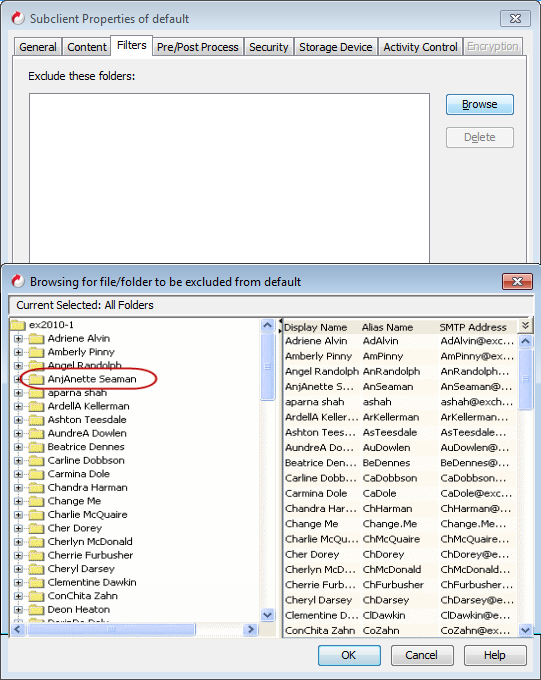
Click the Filters tab, then click Add next to Exclude the following folders.
-
Select a public folder to exclude.
-
Click Add.
-
When finished selecting the items, click Close.
-
Click OK.
The next time a data protection operation is run, the filter will be used to exclude the folders.
Configuring Backups for Deleted Item Retention Folders
By default, Deleted Item Retention folders are not included in backups. In some cases, it may be desirable to include them for record keeping purposes.
-
From the CommCell Browser, right-click the Exchange Agent and then click Properties.
-
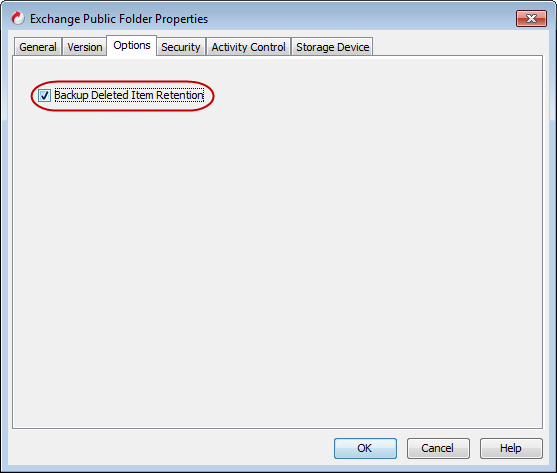
From the Options tab, select the Backup Deleted Item Retention option.
-
Click OK.
Changing User Account for Exchange Agents
The Exchange agents require a user account that has Exchange administrator privileges to:
-
Perform backups and restores
-
Log on to the related server to access the data
Additional accounts should be established by the Exchange database administrator.
By default, when you add the agent, a user account with Exchange Administrator privileges is provided. You can change the user account at the agent level.
-
From the CommCell Browser, expand Client Computers > client.
-
Right-click Exchange, and then click Properties.
The Properties dialog box appears.
-
Click Change Account.
-
Type the user name in the Exchange Administrator Account box.
-
Type the password in the Password box and reenter it in the Confirm Password box.
-
Click OK.
Modifying an Agent or a Subclient
There are several configurable properties available for your agent that can be modified from the agent, backup set or subclient level as per your need.
The following table describes the properties that can be configured from the agent, backup set and subclient levels.
|
Option |
Description |
Related Topics |
|---|---|---|
|
Change the Profile Name |
You can modify the profile that is associated with the appropriate Administrator Public Folder.
|
|
|
Change the Exchange Server Name |
You can modify the name of the Exchange Server that is installed on the client computer. However, the Exchange server name should not be the same as Client or Host Name.
|
|
|
Change Account |
You can change the Exchange administrator account information associated with this agent.
|
|
|
Backup Deleted Item Retention |
You can choose to backup the Deleted Item Retention folder.
|
|
|
Change the Exchange Version |
You can select and modify the version of the Exchange Server from the list.
|
|
|
AD Server |
This feature allows you to specify the domain name of one or more Exchange Servers containing public folders and accounts that reside in a non-default domain or in multiple domains.
|
|
|
Rename Backup Set and Subclient |
You can rename a backup set and subclient: Renaming backup sets:
|
|
|
Change Storage Policies |
You can modify the storage policies in any of the following situations:
|
Refer to Storage Policies. |
|
Data Transfer Options |
You can configure the available resources for transferring data secured by data protection operations from the subclient level. This includes the following:
|
Refer to Data Compression and Network Bandwidth Throttling. |
|
View Data Paths |
You can view the data paths associated with the primary storage policy copy of the selected storage policy or incremental storage policy. You can also modify the data paths including their priority from the subclient level.
|
|
|
Configure a Subclient for Pre and Post Processing of Data Protection |
You can add, modify or view Pre-processes and Post-processes for the subclient. These are batch files or shell scripts that you can run before or after certain job phases.
|
Refer to Pre-processes and Post-Processes. |
|
Configure Activity Control |
You can enable backup and restore operations from the agent and subclient level. However, you can enable restore operations only from the agent level.
|
Refer to Activity Control. |
|
Configure User Security |
You can configure user security from the agent or subclient level. You can perform the following functions:
|
Refer to User Administration and Security. |
|
Enable and Disable Data Encryption |
When you configure encryption at the client level, it is configured automatically for all the subclients associated with all the agents installed on that client. If you want to disable or change the encryption at the subclient level, follow the steps given below:
|
Refer to Data Encryption. |
|
View Software Version |
At the client level, the Version tab of the Properties dialog box displays the software version of the component.
|
|
|
CommCell Configuration Report |
The CommCell Configuration Report provides the properties of the CommServe, MediaAgents, clients, agents, subclients, and storage policies within the CommCell based on the selected filter criteria.
|
Refer to CommCell Configuration. |
Deleting an Agent, a Backup Set or a Subclient
The following sections describe the steps involved in deleting an agent, backup set or subclient.
Caution
When you delete an instance or archiveset, the associated data is logically deleted and you can no longer access the corresponding data from CommCell Console for recovery purposes.
Refer to the topic Recovering Data Associated with Deleted Clients and Storage Policies for information on how to recover data if you accidentally delete an entity.
Deleting an Agent
You must uninstall or deconfigure the agent software from the client computer before deleting it from CommCell Browser. After you delete the client software, you can either leave the corresponding data intact for an appropriate action or you can remove the data immediately. If you choose to remove the data immediately, you must delete the agent from the CommCell Browser. If you delete the agent, all of the agent's data is irretrievably lost.
-
You cannot delete an agent while operations for that agent are running.
-
From the CommCell Browser, navigate to Client Computers > client**.
-
Right-click the agent**, and then click Delete.
-
A confirmation message appears with the following message:
This operation will permanently delete the data backed up from this level and it cannot be restored. -
Click OK to continue with the deletion operation or click No to cancel the deletion.
Deleting a Backup Set
Consider the following before deleting a Backup Set:
-
You cannot delete a default Backup Set.
-
Schedules associated with the Backup Set are also automatically deleted.
-
From the CommCell Browser, expand Client Computers > client > agent.
-
Right-click the backup_set, and then click Delete.
-
A confirmation message is displayed, asking if you want to delete the Backup Set.
Click No to cancel the deletion and retain the Backupset, or click Yes to continue the deletion.
Deleting a Subclient
Consider the following before deleting a subclient:
-
You cannot delete a default subclient.
-
Schedules associated with the subclient are also automatically deleted.
-
From the CommCell Browser, expand to Client Computers > client > agent > backup_set
-
Right-click the subclient that you want to delete, and then click Delete.
-
A confirmation message appears that asks if you want to delete the subclient.
-
Click No to cancel the deletion and retain the subclient, or click Yes to continue the deletion.