Once the storage policy is configured, you are ready to perform your first backup.
-
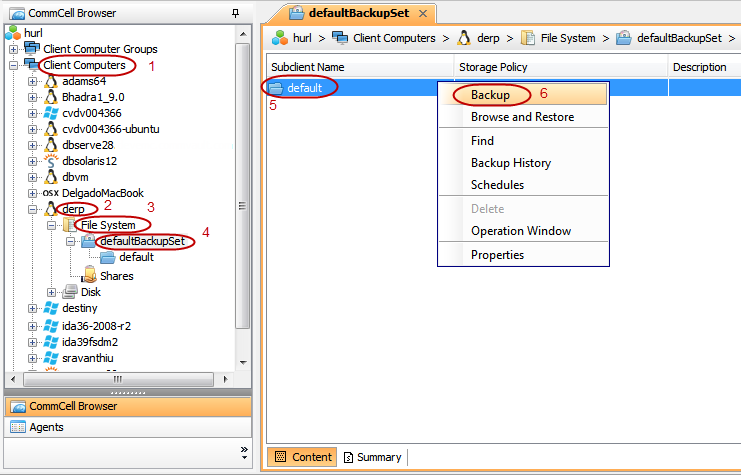
From the CommCell Browser, navigate to Client Computers | <Client> | File System | defaultBackupSet.
Right-click the default subclient and click Backup.
-
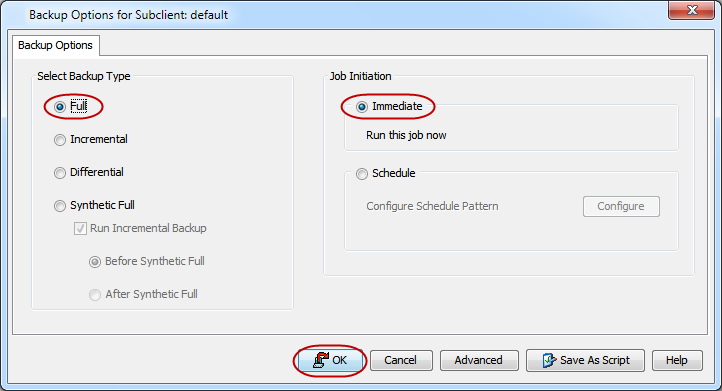
Click Full as backup type and then click Immediate.
Click OK.
-
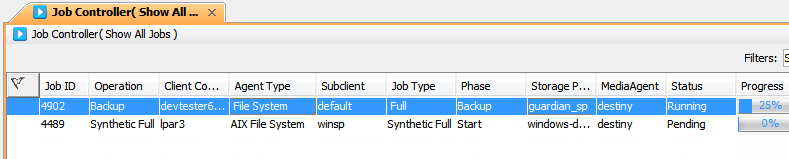
You can track the progress of the job from the Job Controller window of the CommCell console.
-
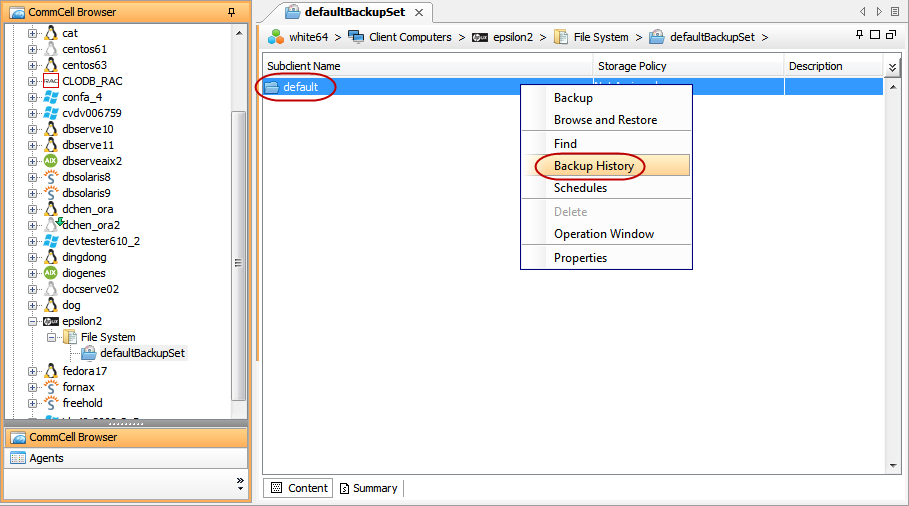
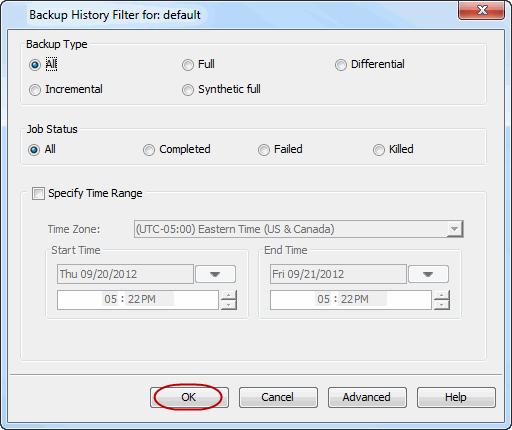
Once the job is complete, view the job details from the Backup History. Right-click the Subclient and select Backup History.
-
Click OK.
-
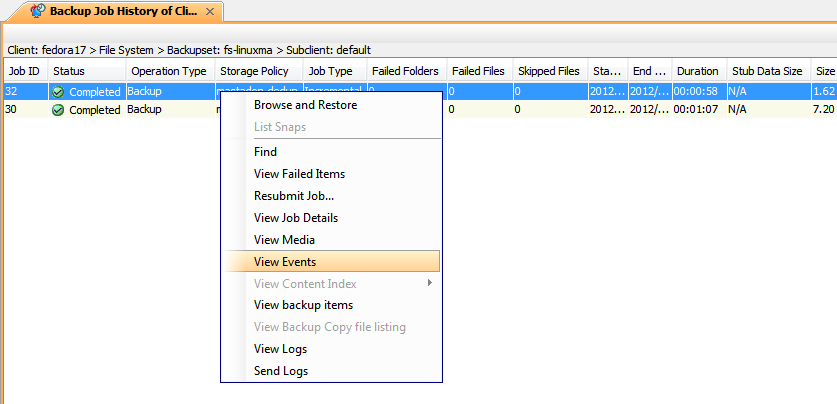
You can right-click the job and view the following details:
-
Items that failed during the job
-
Details of the job
-
Events of the job
-
Log files of the job
-
Media associated with the job
-
Perform a Backup
Once the storage policy is configured, you are ready to perform your first backup.
-
From the CommCell Browser, navigate to Client Computers | <Client> | File System | defaultBackupSet.
Right-click the default subclient and click Backup.
-
Click Full as backup type and then click Immediate.
Click OK.
-
You can track the progress of the job from the Job Controller window of the CommCell console.
-
Once the job is complete, view the job details from the Backup History. Right-click the Subclient and select Backup History.
-
Click OK.
-
You can right-click the job and view the following details:
-
Items that failed during the job
-
Details of the job
-
Events of the job
-
Log files of the job
-
Media associated with the job
-