Follow the steps given below to perform the first backup:
-
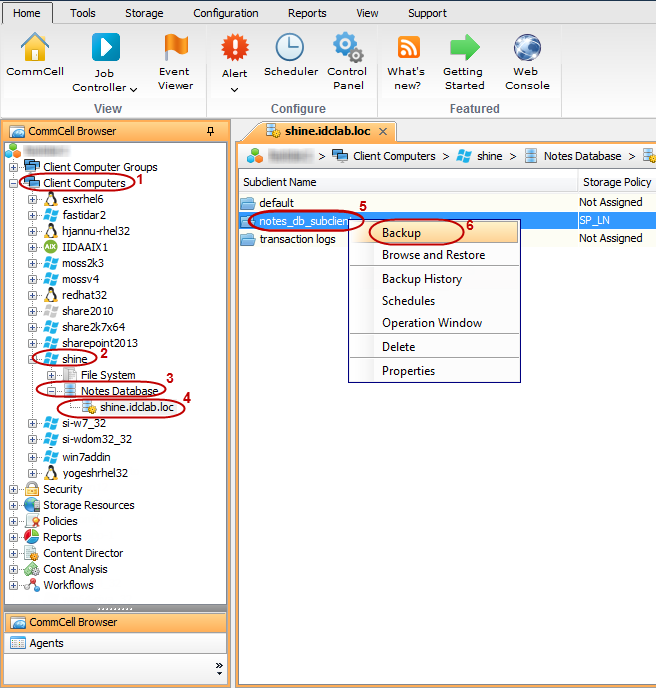
From the CommCell Console navigate to Client Computers | <Client> | Notes Database | <Partition>.
In the right-pane, right-click the <Subclient> and click Backup.
Note
Databases that are not assigned to any user-defined subclient, are automatically backed up using the default subclient.
-
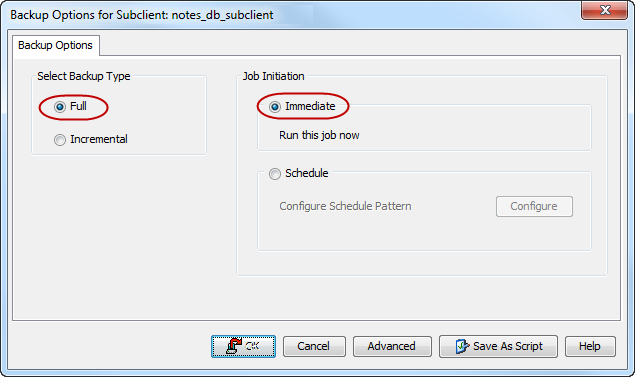
Click Full as backup type, and then click Immediate.
Click OK.
-
You can track the progress of the job from the Job Controller window of the CommCell console.

-
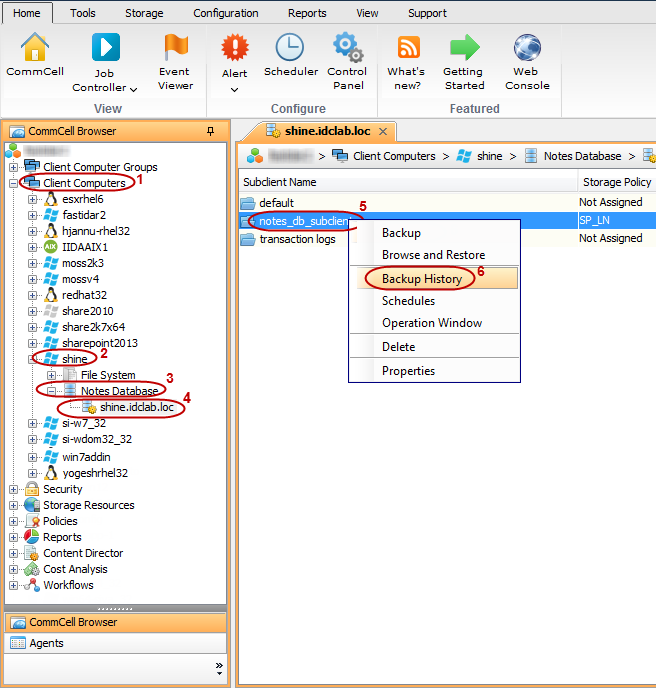
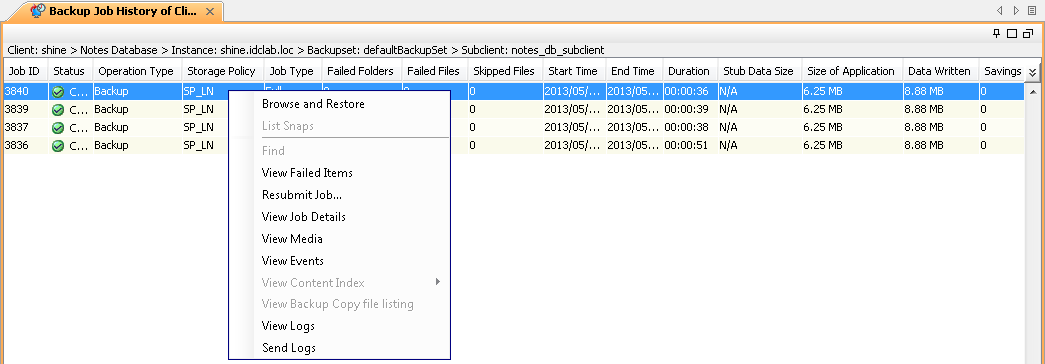
Once the job is complete, view the job details from the Backup History. Right-click the Subclient and select Backup History.
-
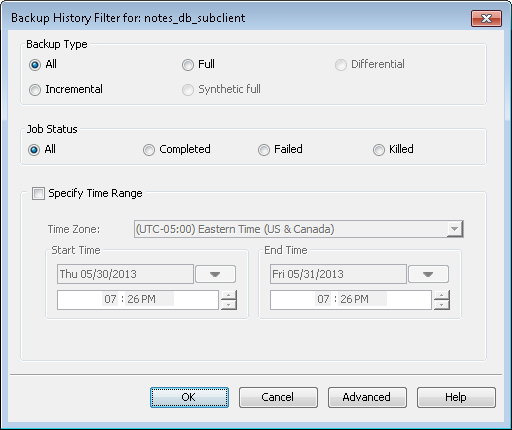
Click OK.
-
In the Backup History tab, right-click the backup job to view the following job details:
-
Items that failed during the job
-
Items that succeeded during the job
-
Details of the job
-
Events of the job
-
Log files of the job
-
Media associated with the job
-
What Gets Backed Up
-
Notes Databases generated on File Allocation Table (FAT) file systems
-
Notes Databases generated on New Technology file systems (NTFS)
-
All Domino transaction logs
-
System Files, like NLO files, server ID and notes.ini
-
All Notes databases and templates (.nsf and .ntf), logged and non-logged, visible to the Domino
What Does Not Get Backed Up
Backup for all other data types not mentioned in the above list are not supported, including:
-
Shared mail databases
-
Databases on remote computers
-
Database full text indexes
-
Non-database files (for example, exe, dll, dir, dsk, box)
-
Notes data stored on Notes computers
Use Windows File System iDataAgent to backup Notes Data on the Notes computer.