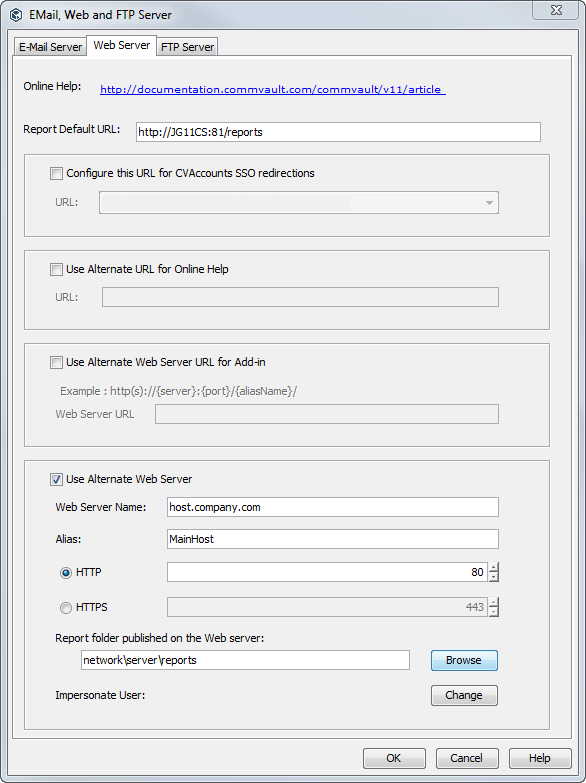
You can configure reports for web administration.
Procedure
-
From the CommCell Console ribbon, on the Home tab, click Control Panel.
-
Under Maintenance, click Email, Web and FTP Server.
-
On the Web Server tab, select the Use Alternate Web Server check box.
-
In the Web Server Name box, type the name of the computer that has IIS enabled.
-
Optional: If the Web Server is accessible by a different name, then configure an alias. In the Alias box, type the alternate name for the Web Server.
-
Depending on the protocol being used, type the a port number if the default port is not suitable for your environment.
For HTTP, the default port is 80. For HTTPS, the default port is 443.
-
In the Report folder published on the Web server box, type the installation path or click the Browse button to select the path, click the Change button and configure user credentials:
-
In the Change User Account dialog box, select Use This Account.
-
In the User Name and Password boxes, enter the user credentials.
-
Click OK to close the Change User Account dialog box.
Important: The Impersonate User credentials must have write permission for the report folder that you specify.
-
-
Click OK.