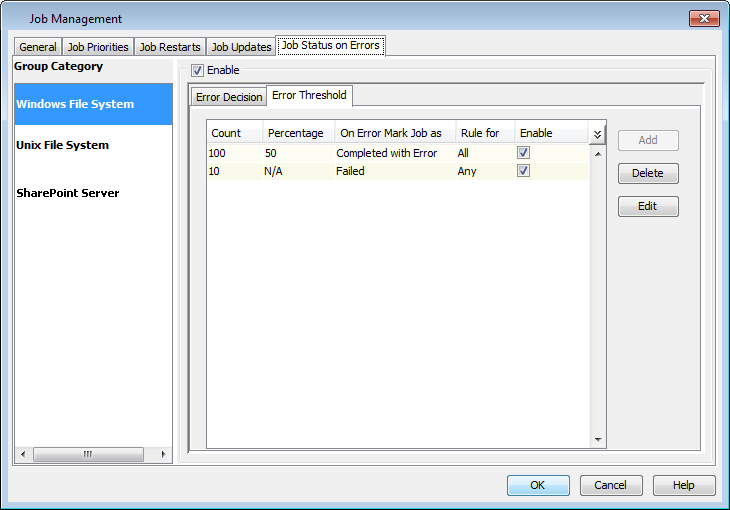
Creating Decision Rules
The following sections describe the steps for creating error decision rules at the client and CommCell levels.
At the Client Computer Level
-
In the CommCell Browser, right-click the client, and then click All Tasks > Job Status on Errors.
-
On the Error Decision tab, in the Group Category pane, select the agent for which you want to add the decision rules.
-
Click Add.
The Add Job Error Decision Rule dialog box is displayed.
-
Follow one of the procedures below to add decision rules for File System agents, Cloud Apps agents, a SharePoint Server agent, or a SQL Server agent:
Adding decision rules for Windows, UNIX, or Cloud Apps (Amazon S3 and Azure Blob Storage) agents
-
By default, all file patterns are considered for the new decision rule. To define rule for specific file patterns, clear the All File Pattern check box, and then in the User Defined Pattern box enter a specific file pattern.
-
From the System Error Code pane, determine whether you want to create rule for a set of errors or for all errors:
-
If you want to create rule for all errors, select the All Error Codes check box.
-
If you want to create rule for a specific set of error codes, in the From Value and To Value boxes, enter the error code range.
-
-
From the On Error Mark Job as box, select a job status to update the job if the rule is matched.
Note: For an IntelliSnap backup job, if a decision rule with "Completed with Errors" status is matched, the job status is marked as Complete.
-
Click OK to close the Add Job Error Decision Rule dialog box.
Adding decision rules for SharePoint Server agent
-
By default, all file types are considered for the new decision rule. To define rule for specific file types, clear the All File Types check box, and then in the User Defined Type box enter a specific file type.
-
To change the "Completed with Errors" status of the backup job caused due to blocked SharePoint files, select the SharePoint Blocked File Types check box.
-
From the On Error Mark Job as box, select a job status to update the job if the rule is matched.
Note
For an IntelliSnap backup job, if a decision rule with "Completed with Errors" status is matched, the job status is marked as Complete.
-
Click OK to close the Add Job Error Decision Rule dialog box.
Adding decision rules for SQL Server agent
-
If a rule is matched to the database error conditions you have chosen, from the Mark database as box, select the status, and then select any of the following:
-
Database not online: To set the database status when the database is not online, select this check box.
-
Database skipped during backup: To set the database status when the database is skipped during backup, select this check box.
-
-
To update the job when a rule is matched, from the Mark job as box, select a job status, and then select the following:
-
No databases qualified for backup: To set the job status when no database qualify for backup, select this check box.
Note
This rule is matched when there is no criteria to back up a database per backup job.
-
-
-
Click OK to close the Job Management dialog box.
You can add more error decision rules for the selected agent, or choose a different agent to add new decision rules.
You can also set the priority for the decision rules that you create by moving a rule up (higher priority) or down (lower priority) using the arrow buttons.
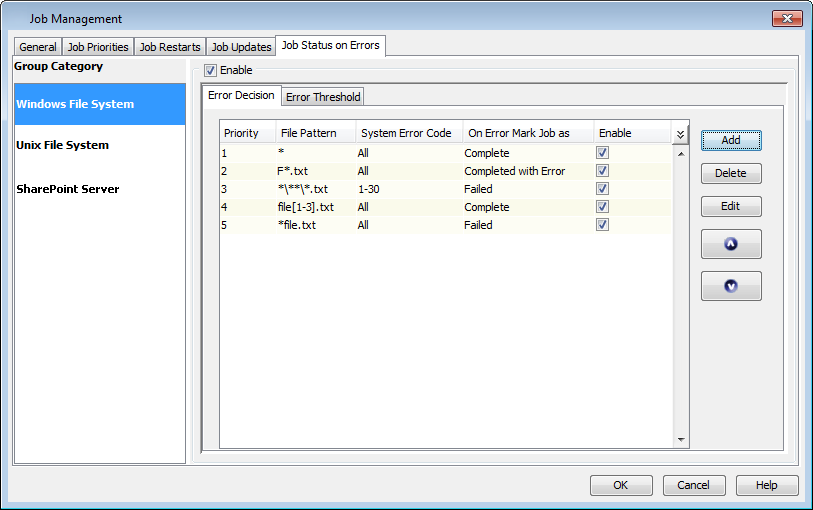
At the Client Computer Group Level
-
In the CommCell Browser, right-click the client_computer_group, and then click All Tasks > Job Status on Errors.
-
On the Error Decision tab, in the Group Category pane, select the agent for which you want to add the decision rules.
-
Click Add.
The Add Job Error Decision Rule dialog box is displayed.
-
Follow one of the procedures below to add decision rules for File System agents, Cloud Apps agents, a SharePoint Server agent, or a SQL Server agent:
Adding decision rules for Windows, UNIX, or Cloud Apps (Amazon S3 and Azure Blob Storage) agents
-
By default, all file patterns are considered for the new decision rule. To define rule for specific file patterns, clear the All File Pattern check box, and then in the User Defined Pattern box enter a specific file pattern.
-
From the System Error Code pane, determine whether you want to create rule for a set of errors or for all errors:
-
If you want to create rule for all errors, select the All Error Codes check box.
-
If you want to create rule for a specific set of error codes, in the From Value and To Value boxes, enter the error code range.
-
-
From the On Error Mark Job as box, select a job status to update the job if the rule is matched.
Note: For an IntelliSnap backup job, if a decision rule with "Completed with Errors" status is matched, the job status is marked as Complete.
-
Click OK to close the Add Job Error Decision Rule dialog box.
Adding decision rules for SharePoint Server agent
-
By default, all file types are considered for the new decision rule. To define rule for specific file types, clear the All File Types check box, and then in the User Defined Type box enter a specific file type.
-
To change the "Completed with Errors" status of the backup job caused due to blocked SharePoint files, select the SharePoint Blocked File Types check box.
-
From the On Error Mark Job as box, select a job status to update the job if the rule is matched.
Note
For an IntelliSnap backup job, if a decision rule with "Completed with Errors" status is matched, the job status is marked as Complete.
-
Click OK to close the Add Job Error Decision Rule dialog box.
Adding decision rules for SQL Server agent
-
If a rule is matched to the database error conditions you have chosen, from the Mark database as box, select the status, and then select any of the following:
-
Database not online: To set the database status when the database is not online, select this check box.
-
Database skipped during backup: To set the database status when the database is skipped during backup, select this check box.
-
-
To update the job when a rule is matched, from the Mark job as box, select a job status, and then select the following:
-
No databases qualified for backup: To set the job status when no database qualify for backup, select this check box.
Note
This rule is matched when there is no criteria to back up a database per backup job.
-
-
-
Click OK to close the Job Management dialog box.
You can add more error decision rules for the selected agent, or choose a different agent to add new decision rules.
You can also set the priority for the decision rules that you create by moving a rule up (higher priority) or down (lower priority) using the arrow buttons.
At the CommCell Level
Use this procedure to add a rule to monitor errors during backup that may occur at the CommCell level.
-
Click the Job Status on Errors tab.
-
On the Error Decision tab, in the Group Category pane, select the agent for which you want to add the decision rules.
-
Click Add.
The Add Job Error Decision Rule dialog box is displayed.
-
Follow one of the procedures below to add decision rules for File System agents, Cloud Apps agents, a SharePoint Server agent, or a SQL Server agent:
Adding decision rules for Windows, UNIX, or Cloud Apps (Amazon S3 and Azure Blob Storage) agents
-
By default, all file patterns are considered for the new decision rule. To define rule for specific file patterns, clear the All File Pattern check box, and then in the User Defined Pattern box enter a specific file pattern.
-
From the System Error Code pane, determine whether you want to create rule for a set of errors or for all errors:
-
If you want to create rule for all errors, select the All Error Codes check box.
-
If you want to create rule for a specific set of error codes, in the From Value and To Value boxes, enter the error code range.
-
-
From the On Error Mark Job as box, select a job status to update the job if the rule is matched.
Note: For an IntelliSnap backup job, if a decision rule with "Completed with Errors" status is matched, the job status is marked as Complete.
-
Click OK to close the Add Job Error Decision Rule dialog box.
Adding decision rules for SharePoint Server agent
-
By default, all file types are considered for the new decision rule. To define rule for specific file types, clear the All File Types check box, and then in the User Defined Type box enter a specific file type.
-
To change the "Completed with Errors" status of the backup job caused due to blocked SharePoint files, select the SharePoint Blocked File Types check box.
-
From the On Error Mark Job as box, select a job status to update the job if the rule is matched.
Note
For an IntelliSnap backup job, if a decision rule with "Completed with Errors" status is matched, the job status is marked as Complete.
-
Click OK to close the Add Job Error Decision Rule dialog box.
Adding decision rules for SQL Server agent
-
If a rule is matched to the database error conditions you have chosen, from the Mark database as box, select the status, and then select any of the following:
-
Database not online: To set the database status when the database is not online, select this check box.
-
Database skipped during backup: To set the database status when the database is skipped during backup, select this check box.
-
-
To update the job when a rule is matched, from the Mark job as box, select a job status, and then select the following:
-
No databases qualified for backup: To set the job status when no database qualify for backup, select this check box.
Note
This rule is matched when there is no criteria to back up a database per backup job.
-
-
-
Click OK to close the Job Management dialog box.
You can add more error decision rules for the selected agent, or choose a different agent to add new decision rules.
You can also set the priority for the decision rules that you create by moving a rule up (higher priority) or down (lower priority) using the arrow buttons.
Creating Threshold Rules
The following sections describe the steps for creating a threshold rule to monitor the amount of files that fail to be backed up.
At the Client Computer Level
-
In the CommCell Browser, right-click the client, and then click All Tasks > Job Status on Errors.
-
On the Error Threshold tab, in the Group Category pane, select the agent for which you want to add the decision rules.
-
Click Add.
The Add Job Error Decision Rule dialog box is displayed.
-
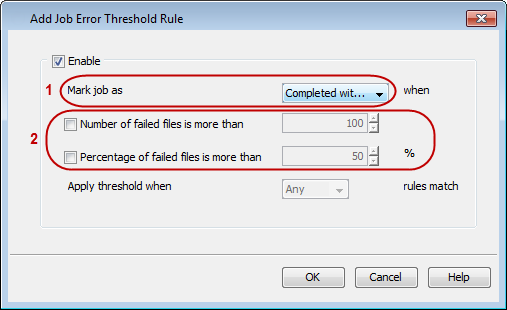
Select the job status from the Mark job as drop-down list to update the job if the rule is matched.
Specify the criteria that you want to use to monitor the failed files:
-
To update the job status based on the number of failed files, click the Number of failed files is more than check box and enter the number of files that should fail during backup to activate this rule.
-
To update the job status based on the percentage of failed files, click the Percentage of failed files is more than check box and enter the percentage of files that should fail during backup to activate this rule.
If both criteria are specified, you can choose to activate this threshold rule when one or both criteria match by using the Apply threshold when n rules match option.
-
-
Click OK.
-
Click OK.
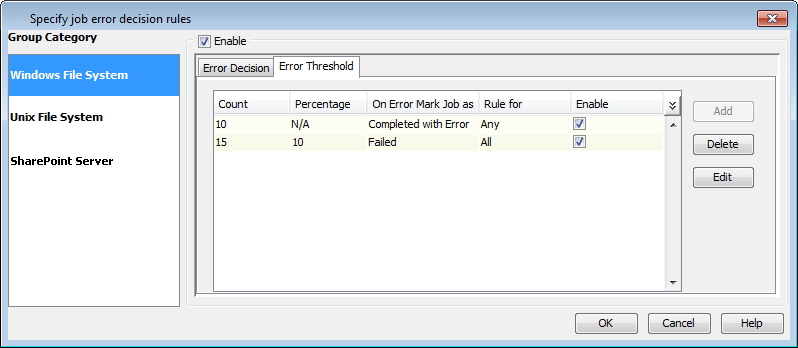
You can add one more threshold rule for the selected agent. Make sure that the status to mark the job is different than the one you previously set.
Note: No more than two error threshold rules are allowed per agent (one rule per job status, that is, one for Completed with Error and one for Failed).
At the Client Computer Group Level
-
In the CommCell Browser, right-click the client_computer_group, and then click All Tasks > Job Status on Errors.
-
On the Error Threshold tab, in the Group Category pane, select the agent for which you want to add the decision rules.
-
Click Add.
The Add Job Error Decision Rule dialog box is displayed.
-
Select the job status from the Mark job as drop-down list to update the job if the rule is matched.
Specify the criteria that you want to use to monitor the failed files:
-
To update the job status based on the number of failed files, click the Number of failed files is more than check box and enter the number of files that should fail during backup to activate this rule.
-
To update the job status based on the percentage of failed files, click the Percentage of failed files is more than check box and enter the percentage of files that should fail during backup to activate this rule.
If both criteria are specified, you can choose to activate this threshold rule when one or both criteria match by using the Apply threshold when n rules match option.
-
-
Click OK.
-
Click OK.
You can add one more threshold rule for the selected agent. Make sure that the status to mark the job is different than the one you previously set.
Note: No more than two error threshold rules are allowed per agent (one rule per job status, that is, one for Completed with Error and one for Failed).
At the CommCell Level
-
From the CommCell Console ribbon, on the Home tab, click Control Panel.
-
Under Data, click Job Management.
The Job Management dialog box is displayed.
-
Click the Job Status on Errors tab.
-
On the Error Threshold tab, in the Group Category pane, select the agent for which you want to add the decision rules.
-
Click Add.
The Add Job Error Decision Rule dialog box is displayed.
-
Select the job status from the Mark job as drop-down list to update the job if the rule is matched.
Specify the criteria that you want to use to monitor the failed files:
-
To update the job status based on the number of failed files, click the Number of failed files is more than check box and enter the number of files that should fail during backup to activate this rule.
-
To update the job status based on the percentage of failed files, click the Percentage of failed files is more than check box and enter the percentage of files that should fail during backup to activate this rule.
If both criteria are specified, you can choose to activate this threshold rule when one or both criteria match by using the Apply threshold when n rules match option.
-
-
Click OK.
-
Click OK.
You can add one more threshold rule for the selected agent. Make sure that the status to mark the job is different than the one you previously set.
Note: No more than two error threshold rules are allowed per agent (one rule per job status, that is, one for Completed with Error and one for Failed).