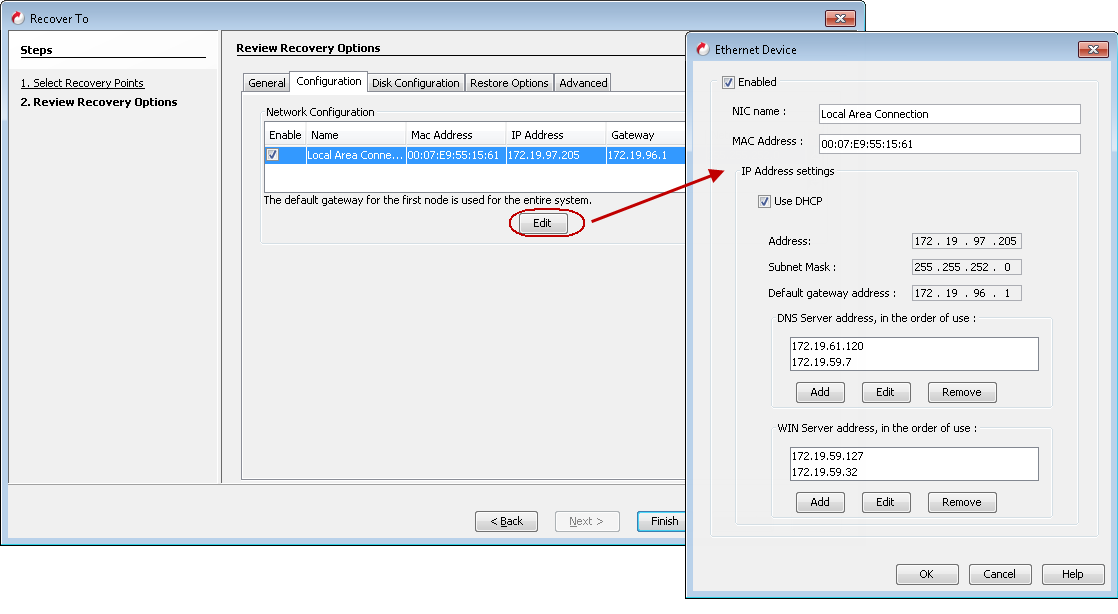
Before restoring the client, you can change the network configuration of the client such as IP address, default gateway etc.
You can change the network configuration before creating a response file and then use the modified response file for a non-interactive restore.
Recommendation: When you have multiple NICs, we recommend that you create a single NIC and recreate the team of NICs after the restore of the client computer finishes.
Procedure
-
From the CommCell Console, go to client.
-
Right-click the client, and then click All Tasks > 1-Touch Recovery Point.
-
Click Next.
-
Click Configuration tab. It displays a list of current network configurations of the client.
-
Select a network configuration which you want to modify and click Edit.
-
Modify the IP address or any other network configuration details.
Click Use DHCP if you want to use DHCP instead of static IP address.
-
If you want to use DNS, click Add and enter the IP address of the DNS Server.
If you want to use WINS, click Add and enter IP address of the WINS Server.
When the client computer and CommServe are in the same domain, DNS will be used for name resolution between client computer and CommServe.
WINS will be used for name resolution in the following scenarios:
-
CommServe and Client computer are in different networks.
-
CommServe is registered in a workgroup.
-
-
Optional: To use a static IP address, perform the following steps:
-
In the Ethernet Device dialog box, click Advanced.
The Advanced Settings dialog box appears.
-
Click Add.
The TCP/IP Address dialog box appears.
-
In the IP address box, type the static IP address.
-
In the Subnet Mask box, type the subnet mask of the network interface that communicates with the CommServe.
-
Click OK.
-
-
Click OK.
-
Click Finish and save the response file.
-
Perform the non-interactive restore using the response file. The client will be restored with modified network configuration.