Before You Begin
-
Drop the database which needs to be restored.
-
Initialize the same database using dbinit utility.
For example, if you drop the mydb.db database, then you have to create and initialize the same mydb.db with the command dbinit mydb.db. Then, you must start the initialized database.
Procedure
-
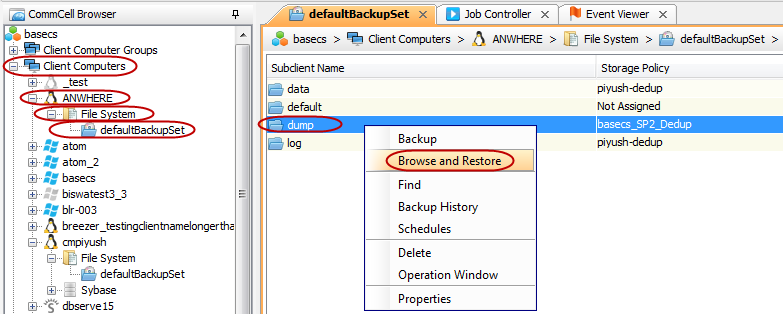
From the CommCell Browser, navigate to Client Computers | <Client> | File System | <Backup Set>.
-
Right-click the Subclient created for SQL Anywhere dump backups in the right pane and then click Browse and Restore.
-
Click View Content.
-
Select the data dump file and reload (sql) file that you want to restore and click Recover All Selected.
-
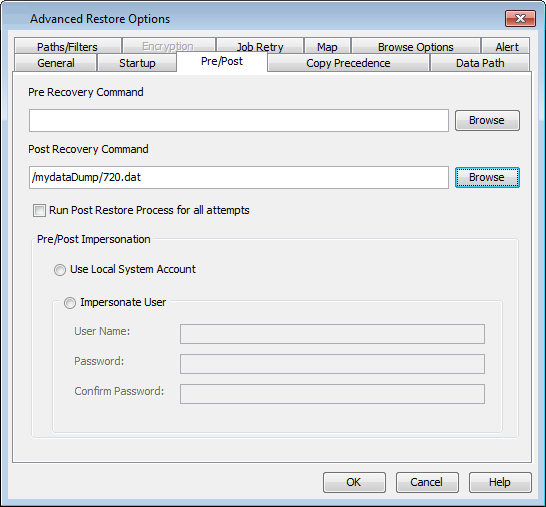
Click Advanced.
-
Click Pre/Post tab.
-
Click Browse to locate the restoreDBScript file and add the script for recovering the reload sql file.
The script should contain the dbisql as a post recovery command. This command should include the reload sql file which contains the path to the dump file to be applied to restore the content of the database.
-
Click OK.
The recoverDBScript dbisql for UNIX and Windows based file systems will be as follows:
dbisqlc -c “Connect-String” <Reload-SQL-File>
Example (UNIX):
dbisqlc -c "eng=demo11;dbn=mydb;uid=dba;pwd=sql" /temp/myDBReload.sql
Example (Windows):
dbisqlc -c "eng=demo11;dbn=mydb;uid=dba;pwd=sql" d:\myDBReload.sql