Searching Emails
Follow these steps to search for emails from the Compliance Search page.
-
Open your web browser and type the Compliance Search URL provided by the administrator in the address bar.
The URL should be in the following format:
http://<HostName>:<Port>/compliancesearch

-
Type your Notes admin username and domain in the Username box, formatted as:
username/domain
Type your internet password in the Password box, and then click Login.
The Compliance Search page appears.
-
Type keywords into the search box.
Click Search.
-
To search emails using advanced search options, click Advanced Search. You can use one or more of the given options in the Advanced Search dialog box to search you emails. Use search options such as email address of the sender, subject of the email, name of attachment, attachment size, name of the user group it was sent to, and then click Submit.
If the end users have alternative internet domains in the Domino domain configuration, they might have multiple email addresses with different domain names. In the Discovery tab, you can use the canonical names to search the emails of all the users on different domains. To enable this feature create the following additional settings:
-
sEnableDiscoveryForDominoUserSearch on the web server
-
sDominoPrimaryAndAlternateDomains on the CommServe
-
-
Select an email from the search results.
A preview of the email appears in the Reading Pane.
Download Items from Your Mailbox
Follow these steps to recover emails to your local disk.
-
From the search results page, select the email or emails you want to recover.
-
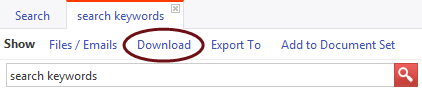
Click Download to retrieve the email from the server.
-
When the email is ready, Save it to your local disk.
Note
If you select more than one email to recover, they will be saved as a single .zip file.
Browsing Messages
By default, the most recent emails will appear at the top of search results. To change how your search results are sorted, click on the columns headings above the search results.

Click on the following column headings to sort emails by:
-
Title: the first character in the subject of the email
-
Size: the total size of the email, including any attachments
-
Modified Date: newest to oldest
Click on the title again to reverse the sorting option. For example, click the Modified Date column twice to sort emails from oldest to newest.
Sorting Columns
Follow these steps to sort columns in the search results page.
-
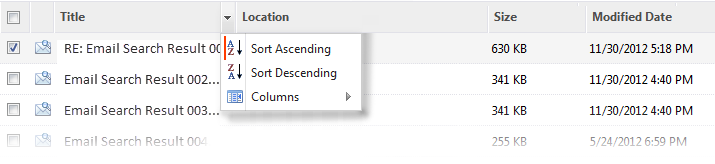
Point to a column heading.
A down arrow button will appear to the right of the title heading.
-
Click the down arrow button to view your options.
-
Click either Sort Ascending or Sort Descending.
Add or Remove Columns
Follow these steps to add or remove columns from the search results page.
-
Point to a column heading.
A down arrow button will appear to the right of the title heading.
-
Click the down arrow button to view your options.
-
Point to Columns.
-
Select or clear the columns you want to view.
-
To finalize your selections, click Columns.
Note:
From the CommServe, run the following script to add the Delivered Date column for the emails:
Qscript -f ConfigDeliveredTimeField.sqle -i install