An alert is sent when the job conditions meet the criteria selected for the alert. The threshold and notification criteria determine when and at what frequency alerts are generated. Alerts can be configured globally or they can be job-based. For information on alerts, see Alerts and Notifications - Overview.
Each job can have one alert. If an alert exists for the job, the Add Alert option is not available.
Adding an Alert
Use the following steps to add a job-based alert for an active job in the Job Controller:
-
From the CommCell Console ribbon, on the Home tab, click Job Controller.
-
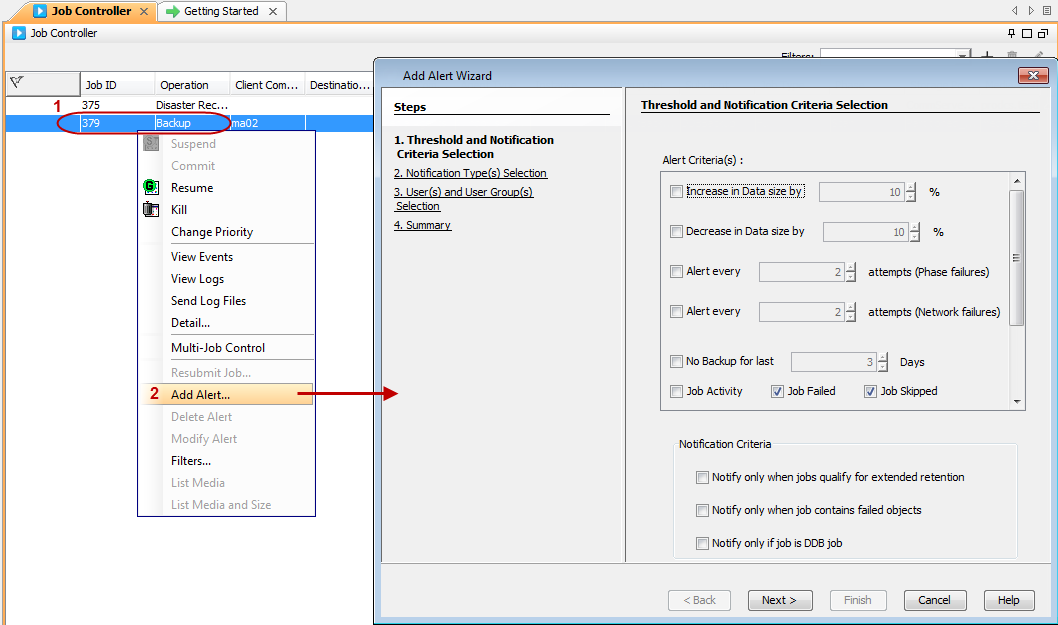
Right-click any running job and click Add Alert.
-
From the Add Alert Wizard dialog box, select the required threshold and notification criteria and click Next.
For information on the alert criteria available for job types, see Alerts and Notifications - Available Alerts - Job Management.
-
Select the way in which the alert is to be sent to its intended recipient and click Next. For example, you can click Select [Email] for notification to send the alert as an email.
-
Select the CommCell users and/or user groups that will receive the alert and then click Next.
-
Review the options that you selected in the Summary tab and click Finish.
The alert will be created for the selected job.
Modifying an Alert
Use the following steps to modify an alert configured for an active job in the Job Controller:
-
From the CommCell Console ribbon, on the Home tab, click Job Controller.
-
Right-click the job associated with the alert and click Modify Alert.
-
In the Modify Alert Wizard dialog box, make the necessary changes and click Finish.
Deleting an Alert
Use the following steps to delete an alert configured for an active job in the Job Controller:
-
From the CommCell Console ribbon, on the Home tab, click Job Controller.
-
Right-click the job associated with the alert and click Delete Alert.
-
Click Yes in the confirmation window.