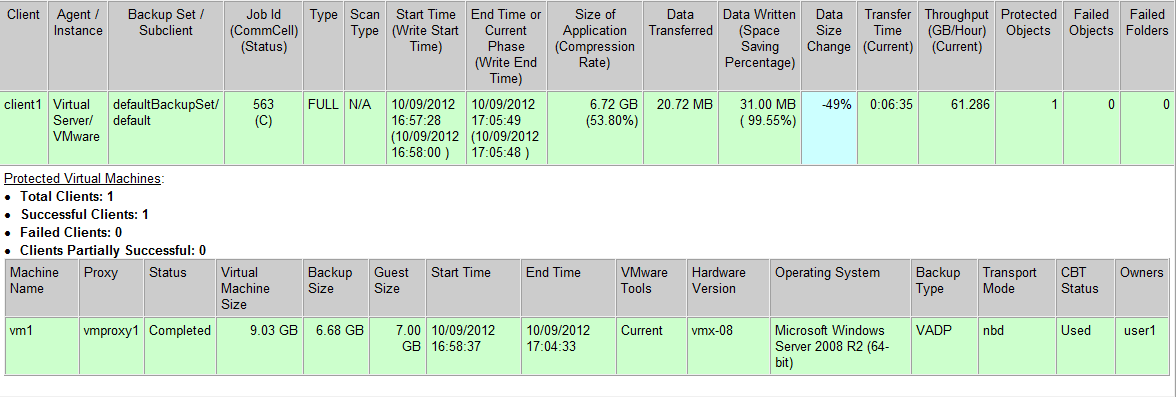
The Backup Job Summary report can show a detailed status of each virtual machine included in the backup. Follow the steps given below to include the status of protected virtual machines in the Job Summary Report:
-
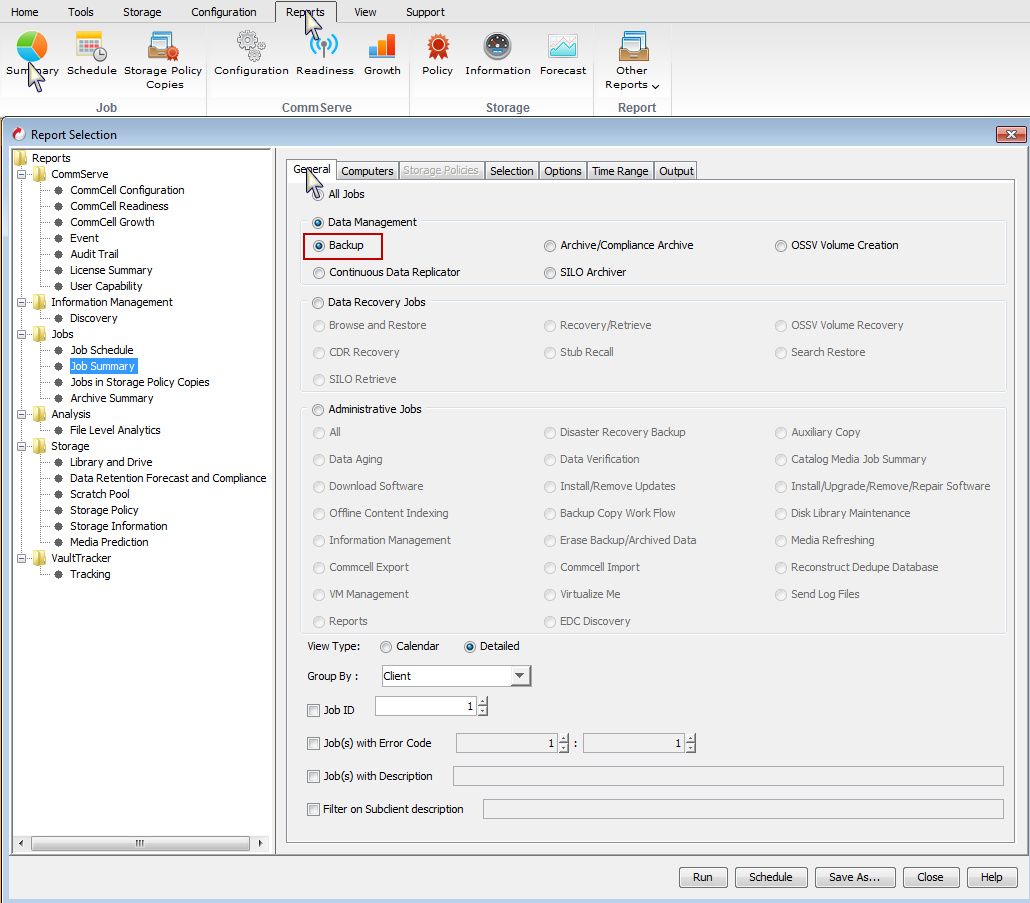
On the CommCell Console toolbar, click the Reports tab, and then click the Summary button.
The Report Selection dialog box appears.
By default, the Backup option is selected on the General tab under Data Management.
-
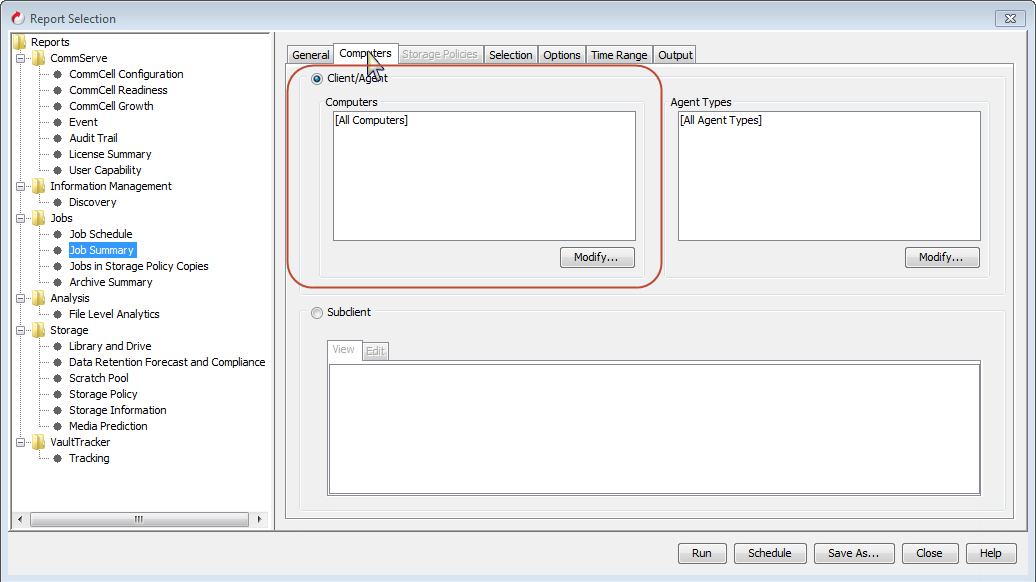
On the Computers tab, select each virtualization client for which you want to view protected virtual machines.
-
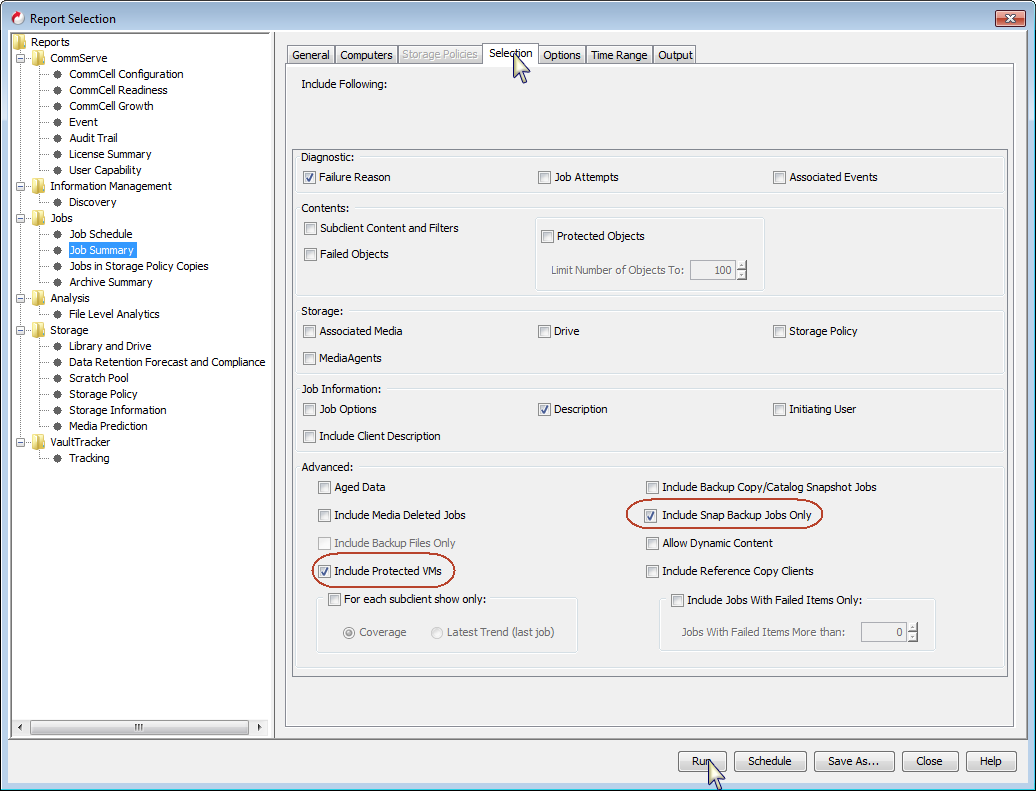
By default, the Include Protected VMs check box is selected on the Selection tab.
Select the Include the Snap Backup Jobs Only check box.
Click Run.
The report appears in your default Web browser. It contains detailed information about the selected virtualization clients, such as proxy name, backup size, backup type, and VMWare tools, if applicable. For snap backups, information appears in all columns, except for those that are not applicable, such as Backup Type, Transport Mode, and CBT Status.