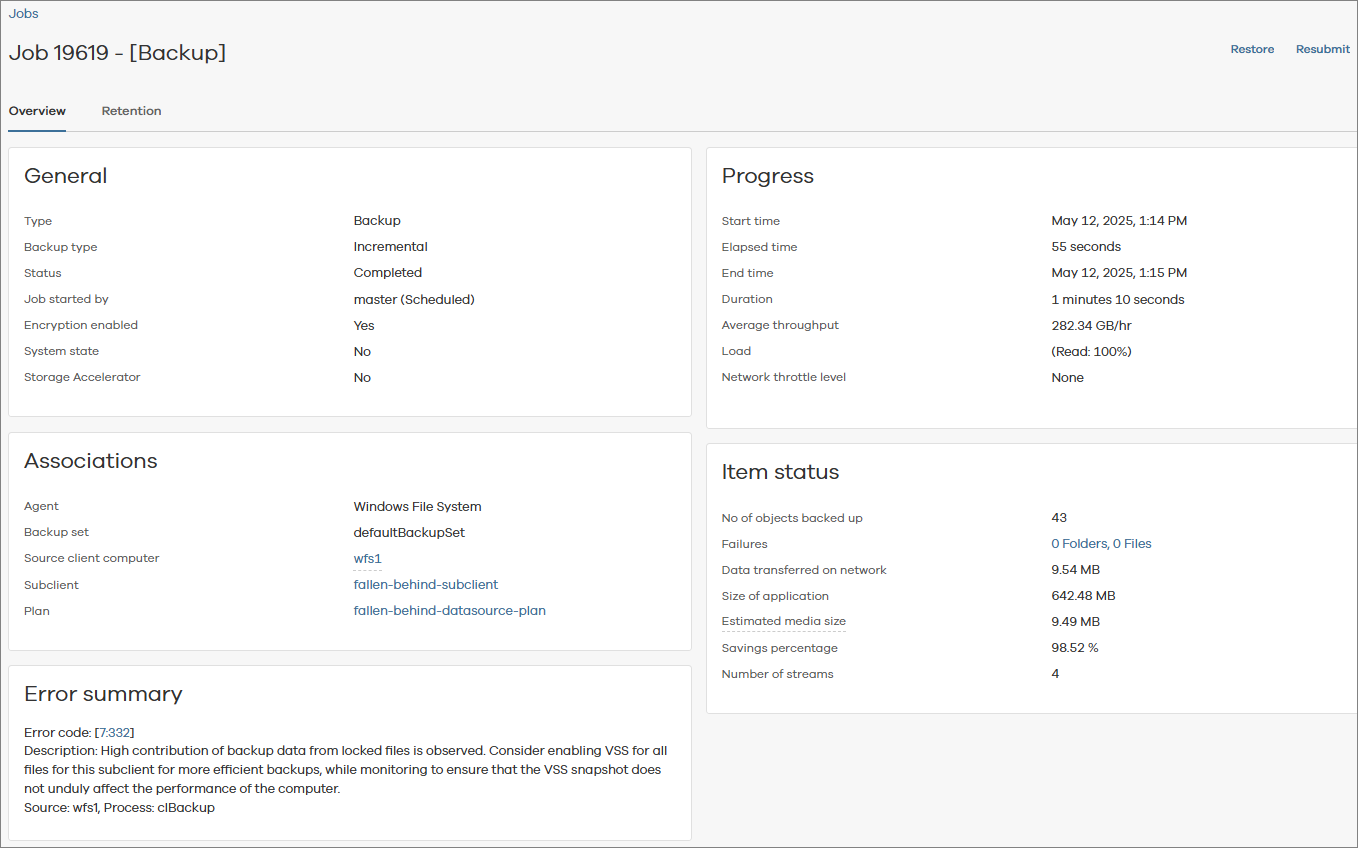
You can view jobs for the entities in your application. For example, you can view jobs for servers or laptops.
Procedure
-
From the navigation pane, go to Jobs.
The Active jobs summary page appears.
-
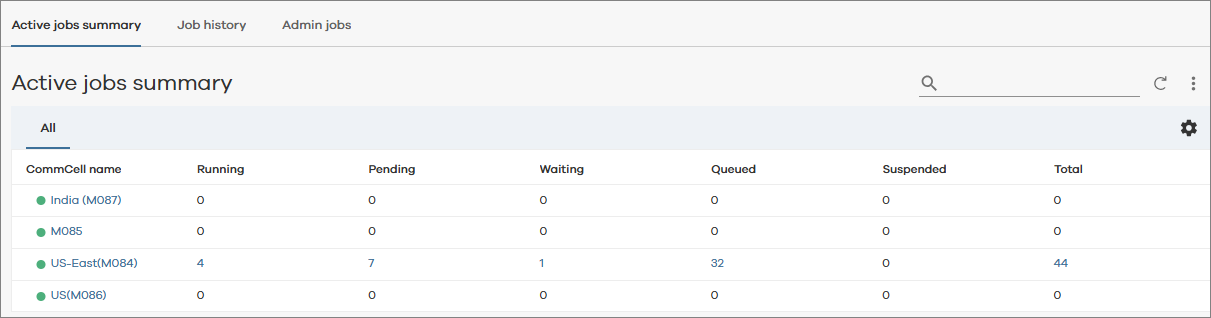
To view active jobs for all CommCell environments, click the Active jobs summary tab.
All active jobs appear, as shown in the following figure:
-
To further refine your results, you can do the following:
-
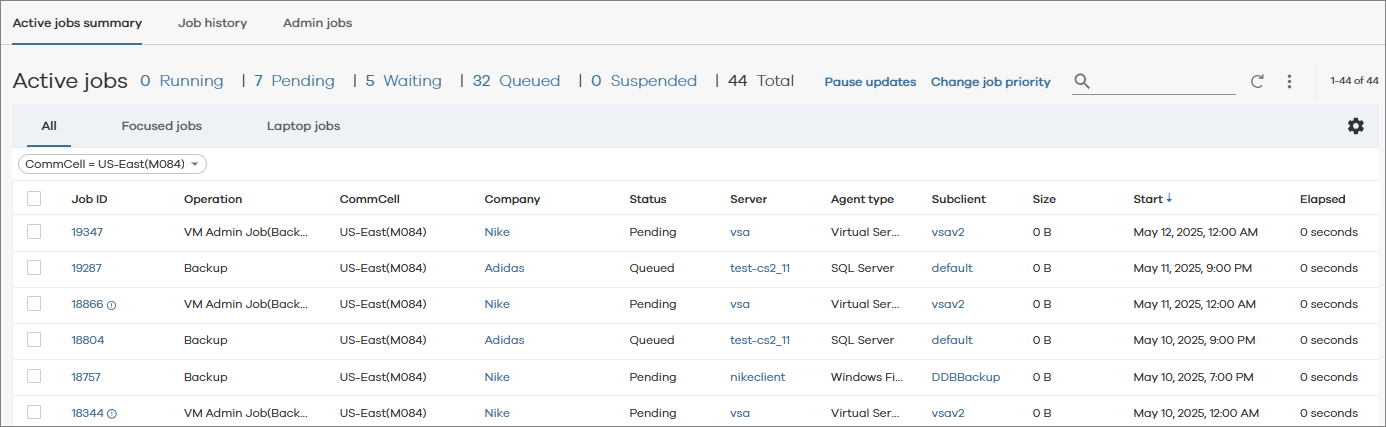
To view active jobs for an individual CommCell environment, click a CommCell name.
The active jobs for the CommCell environment appear, as shown in the following figure:
-
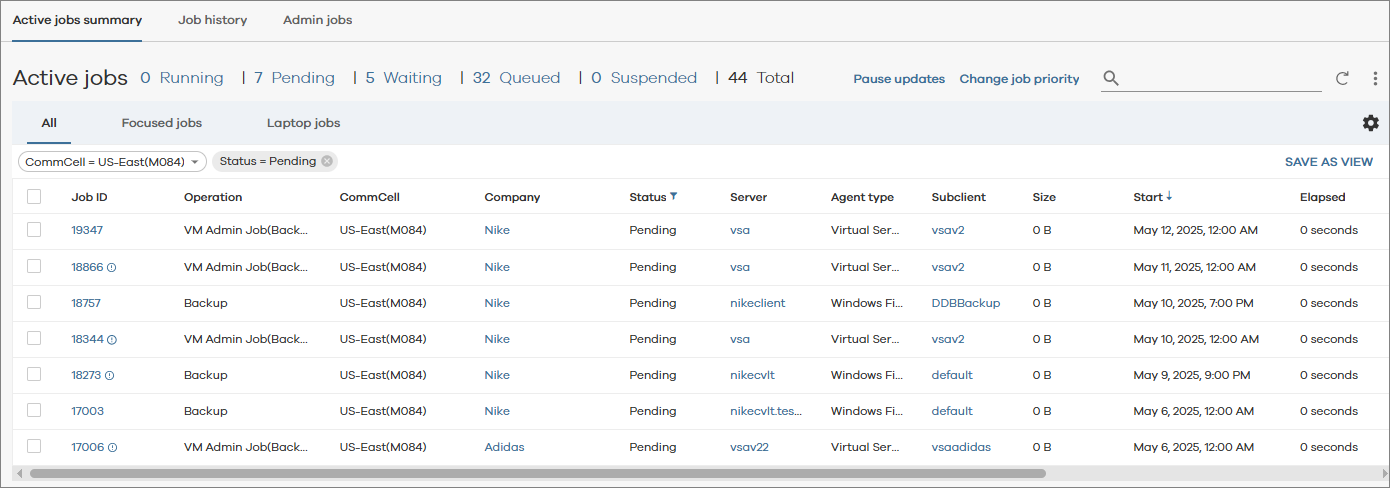
To view active jobs based on their status, click the number in a status column (for example, Running, Pending, Waiting, etc.) for a CommCell environment.
The active jobs for that status in that CommCell environment appear. For example, the following figure shows all active jobs with a Pending status in the US-East CommCell:
-
Viewing Job History
-
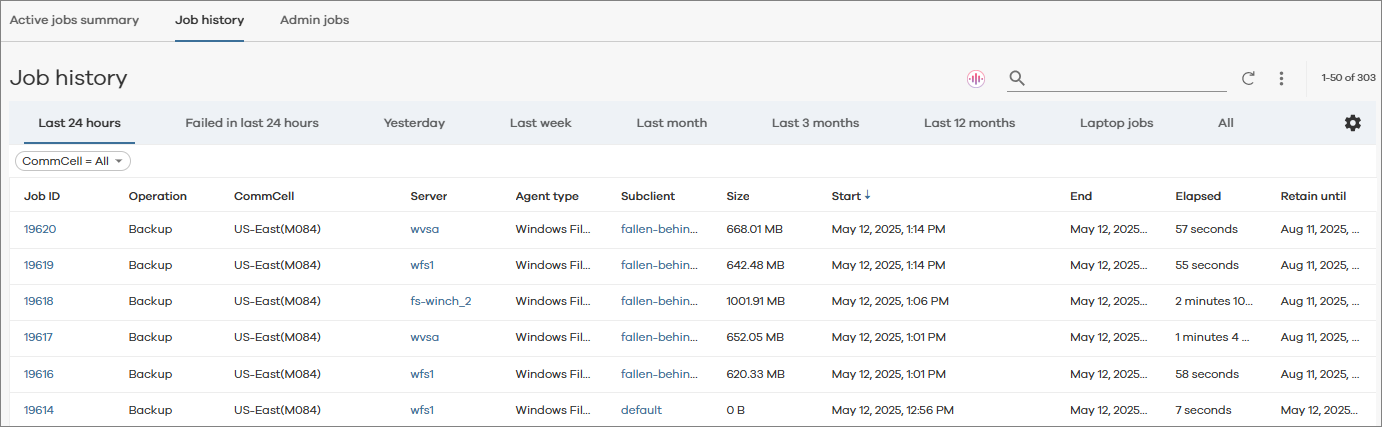
To view the job history for all CommCell environments, click the Job history tab.
The job history appears, as shown in the following figure:
-
To view job details, in the Job ID column, click the job ID.
The job details appear, as shown in the following figure: