When a computer where you have installed the MediaAgent becomes unavailable, all the storage resources configured for the MediaAgent become unavailable and you may have to reconfigure all the storages policies which are using the MediaAgent. Now you can avoid such scenario by performing 1-Touch recovery of the MediaAgent if the MediaAgent backup is available on the PnP disk library or a magnetic disk library.
Before You Begin
-
Ensure that the Windows File System Agent is installed on the MediaAgent computer.
-
You can restore backups from PnP libraries and disk libraries.
For more information on PnP libraries, see PnP (Plug and Play) Disk Libraries.
Limitations for disk libraries
-
The Disk library must be hosted on a separate volume and not on the OS disk.
-
The index must be present at the same volume location as the library.
-
-
Depending upon the type of processor of the computer, create the required Live CD to boot the MediaAgent computer. For more information, see Downloading the ISO file for 1-Touch.
Procedure
-
Use the 1-Touch Live CD to boot the client computer.
-
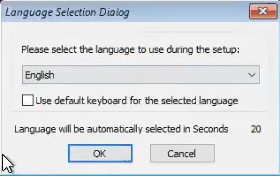
Optional: In the Language Selection Dialog dialog box, select a language from the list. To use the same language for the keyboard, click Use default keyboard for the selected language check box and click OK.
The 1-Touch Recovery Wizard appears.
-
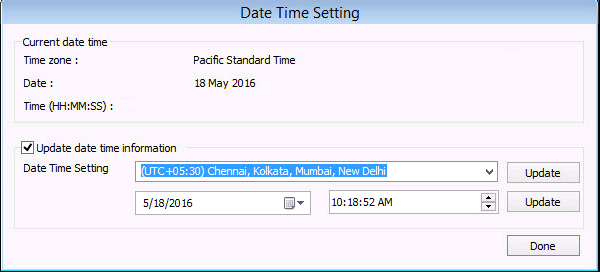
On the WinPE computer notification area, click on the clock and date settings. If you select a time from the Date Time Setting drop down list, click Update and then click Done.
-
On the Welcome page, a warning message appears that says that the response files are not found. Click Cancel to start the interactive restore, and then click Next.
Make sure that you are installing the latest ISO updates by verifying the Binary version area for the latest service pack.

-
On the Detected Disk Devices page, do the following:
-
Click Yes, all disk drives have been detected.
If you do not see the required drivers, add the drivers to the downloaded ISO.
-
Click Next.

-
-
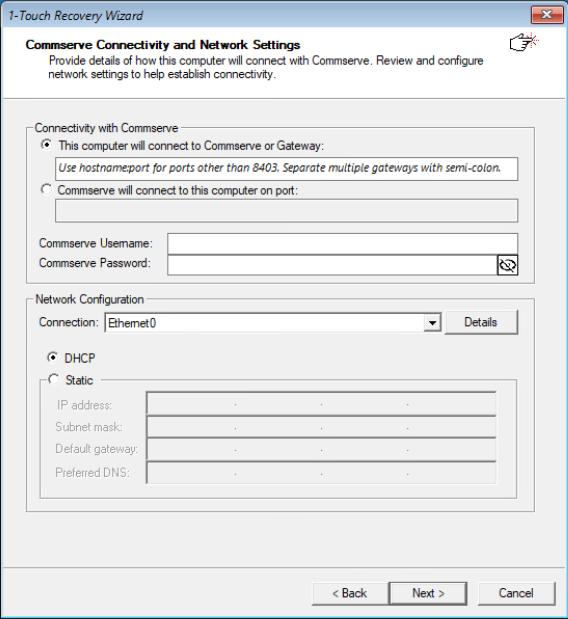
On the Commserve Connectivity and Network Settings page, make the required selections, and then click Next.
-
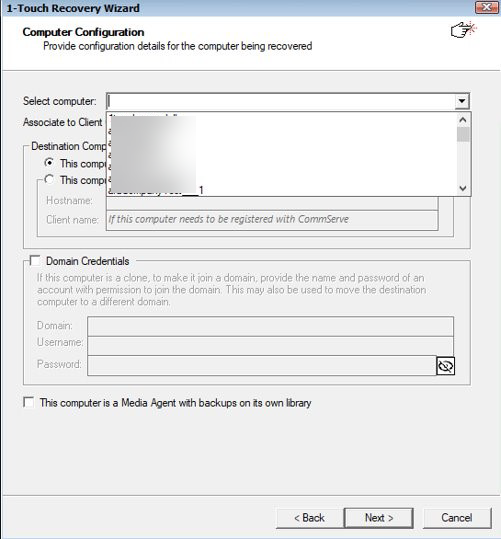
On the Computer Configuration page, make the following selections:
-
From the Select computer list, select the client with the system state backup.
-
If your have assigned permissions at the client group level, from the Associate to Client Groups list, select the appropriate client group.
-
Select the Destination computer.
-
If you have selected This computer will be a clone of the selected computer, then enter the Hostname.
-
To add the destination or the cloned computer to a domain based on your requirement, enter the domain Username and Password.
-
Select the This computer is a Media Agent with backups on its own library.
-
Click Next.
-
-
Perform the Interactive Restore.