Firmware and BIOS can be updated on Remote Office Appliance RO1200.
Updating the Firmware
-
Login to a remote workstation, that has access to the HyperScale nodes.
-
Download HS2300--M2Firmware.zip from the Commvault Store.
-
Unzip the file and extract its contents.
-
Double-click MicronNVMeDrivers_x64.msi and follow the prompts to install the driver.
-
Open Powershell or Command Terminal and navigate to the folder containing the contents of the extracted zip file.
-
Confirm that the Micron NVME driver is installed using the following command:
.\msecli.exe -LOutput similar to the following will be displayed:
Device Name : mtinvme201727D5623 Model No : MTFDHBA256TCK-1AS15ABYY Serial No : 201727D5623 FW-Rev : P1MU003 ....... -
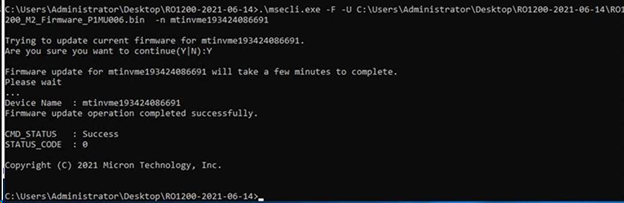
Update the firmware using the
Device Nameas follows:.\msecli.exe -F -U C:\File\fwImage_P1MU0E6.bin -C 0 -n mtinvme201727D5623Output similar to the following will be displayed:
-
Shut down and start the server
-
Open Powershell or Command Terminal and navigate to the folder containing the contents the of the extracted zip file.
-
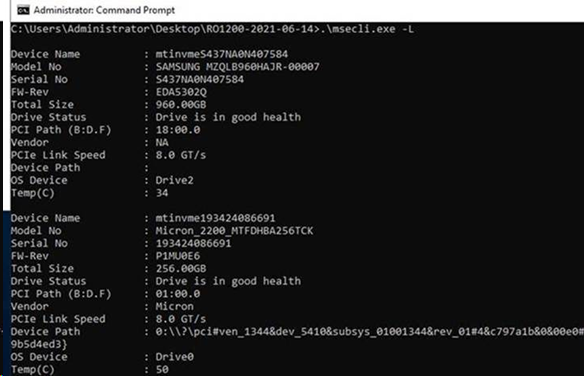
Confirm that the Firmware is updated to P1MU0E6 using the following command:
.\msecli.exe -LOutput similar to the following will be displayed:
Updating the BIOS
-
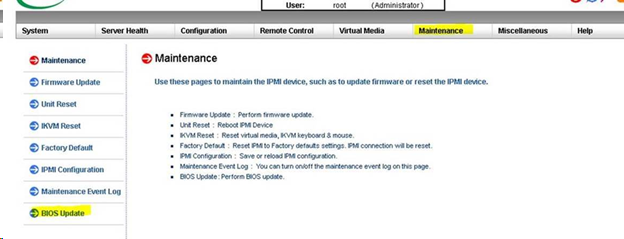
Open a web browser and type the IP address associated with the IPMI management port on the server.
The Maintenance screen is displayed.
-
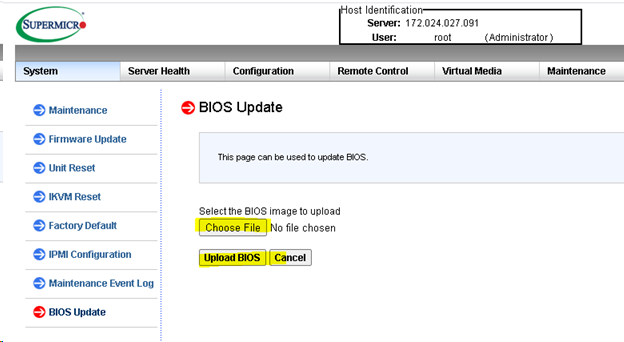
From the navigation pane, go to BIOS Update.
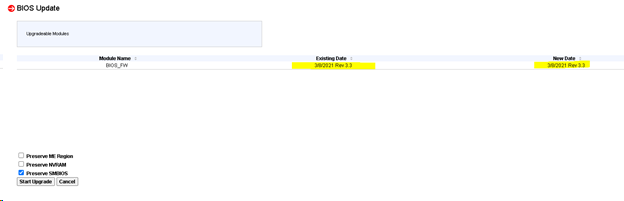
The BIOS Update screen is displayed.
-
Click the Choose File button
-
Navigate to the folder containing the contents of the extracted zip file and choose RO1200_BIOS_Update_33v3.rom.
-
Click the Upload BIOS button.
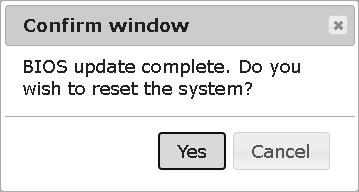
The Confirm window will be displayed.
-
Click Yes.
The BIOS will be updated and BIOS Update screen will be displayed.