The Threat Scan dashboard displays a summary of the resources at risk in the CommCell environment.
Procedure
-
From the Command Center navigation pane, go to Security services > Threat scan.
The Threat Scan page appears.
-
The Overview tab shows the resources at risk.
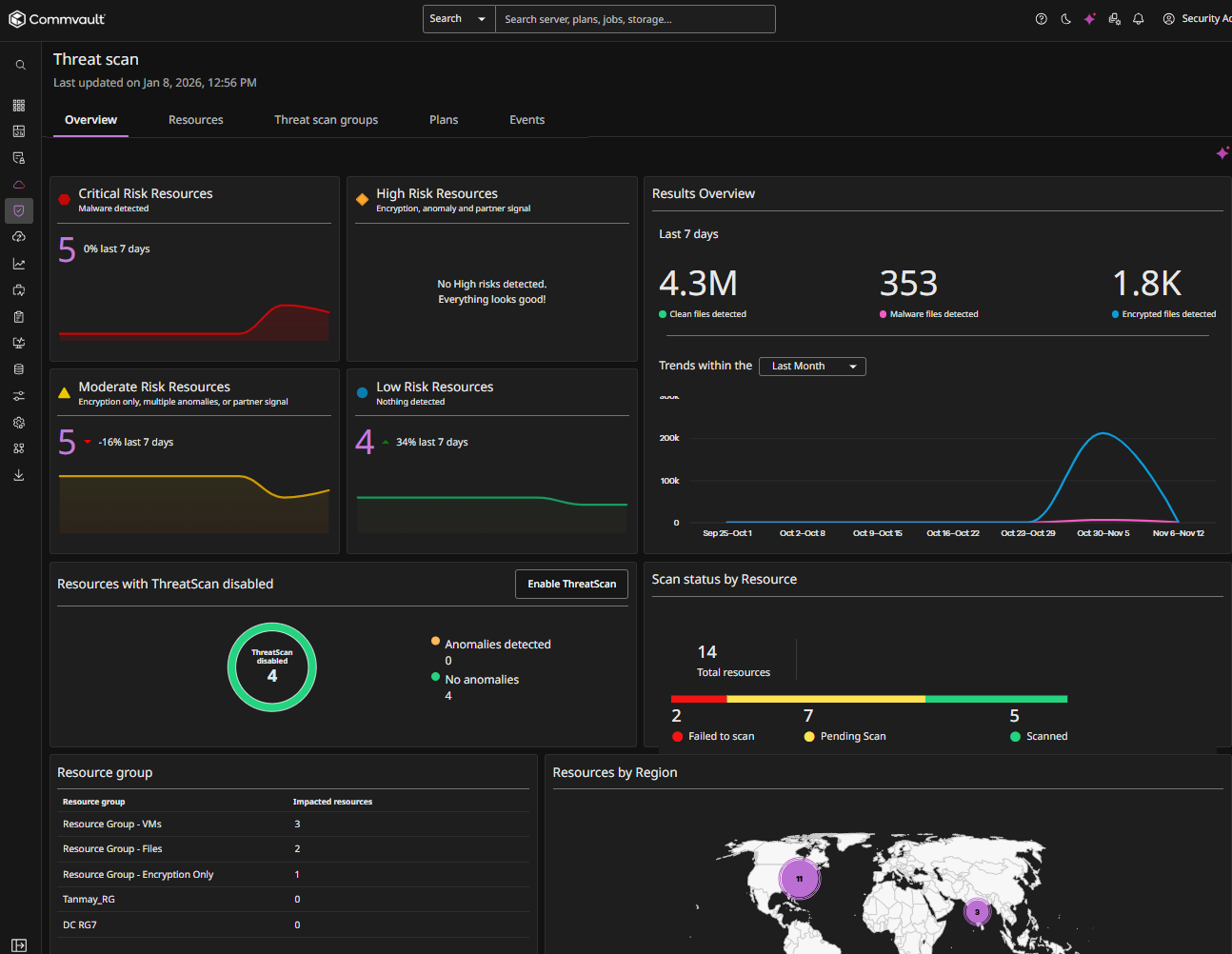
Threat Scan Overview Tiles
Arlie Recover
Note
To use Arlie Recover, you must enable the Arlie Recover additional setting in your environment. For more information, contact earlyadopter@commvault.com.
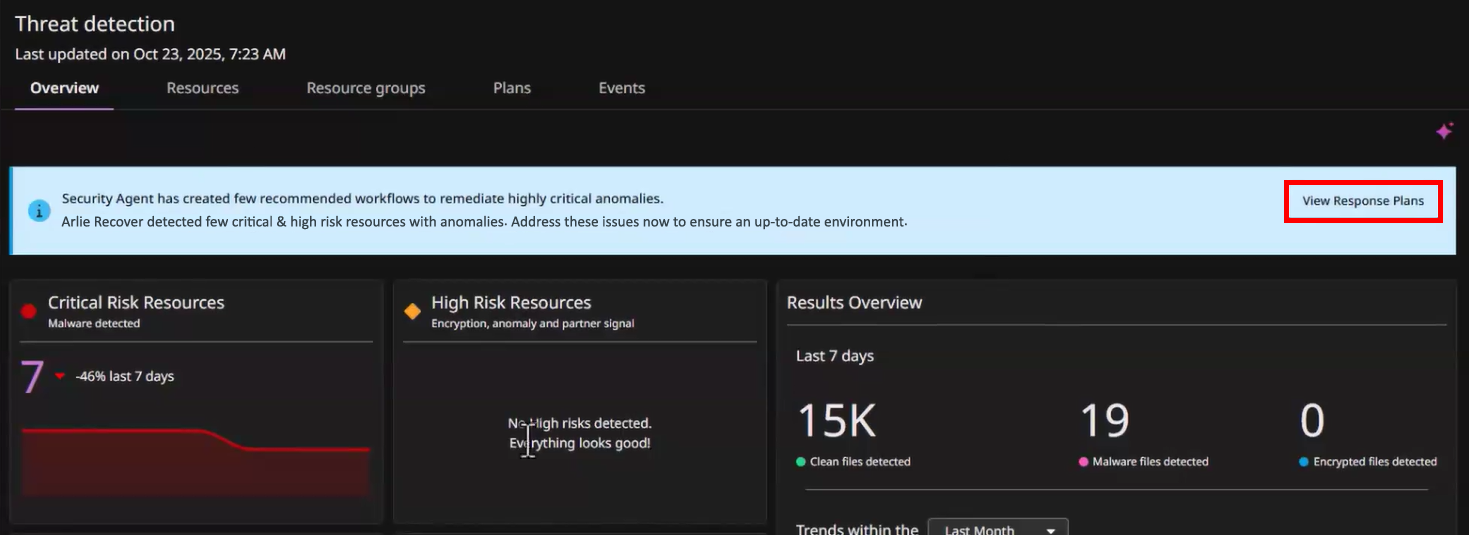
If Arlie Recover is enabled, the View Response Plans button appears in a banner as shown below. You can use Arlie Recover to automate threat‑response plans for critical and high‑risk resources. For more information, see Executing an Automated Threat Response Plan Using Arlie Recover.
Risk Resources
This tile displays the number of risks detected over the past 7 days, by severity:
-
Critical Risk Resources: Resources where malware has been detected (confirmed malicious content).
-
High Risk Resources: Resources where multiple distinct threat signal types have been detected (for example, anomalies combined with encryption, or partner signals with anomalies), indicating stronger evidence of compromise.
-
Moderate Risk Resources: Resources where only a single threat signal type has been detected (for example, anomalies only), suggesting potential risk but with limited corroboration.
-
Low Risk Resources: Resources with no detected threat signals, indicating they are likely clean compared to the rest of the environment.
Results Overview
This tile displays the number of risks (clean files, malware files detected, and encrypted files detected), as well as the trend of these risks identified over the period of time select in the drop-down list.
Hover over the chart segments to see the number of detected malware files and encrypted files for each date.
Resources with Threat Scan Disabled
This tile displays the following information:
-
Threat Scan disabled: Number of resources that currently have Threat Scan turned off.
-
Anomalies detected: Number of anomalies identified in disabled resources.
-
No anomalies: Number of resources without detected issues.
-
Enable Threat Scan button: Click this to activate scanning for disabled resources.
Scan Status by Resource
This tile displays an overview of current scan activity across all resources:
-
Total resources
-
Failed to scan
-
Pending scan
-
Scanned successfully.
Resource Group
This tile displays Azure or cloud resource groups with the number of impacted resources:
-
Resource group: Name of the resource group.
-
Impacted resources: Number of resources affected or scanned within each group.
Resources by Region
This tile displays the number of risks detected by global region. Hover your mouse over a map region to view the number of risks by severity.