Azure Email Communication Service enables applications to send transactional email messages through Azure Communication Services (ACS). You can use this configuration to send notifications, alerts, OTPs, and other system-generated email messages.
To use Azure Communication Services for email delivery, complete the following configurations.
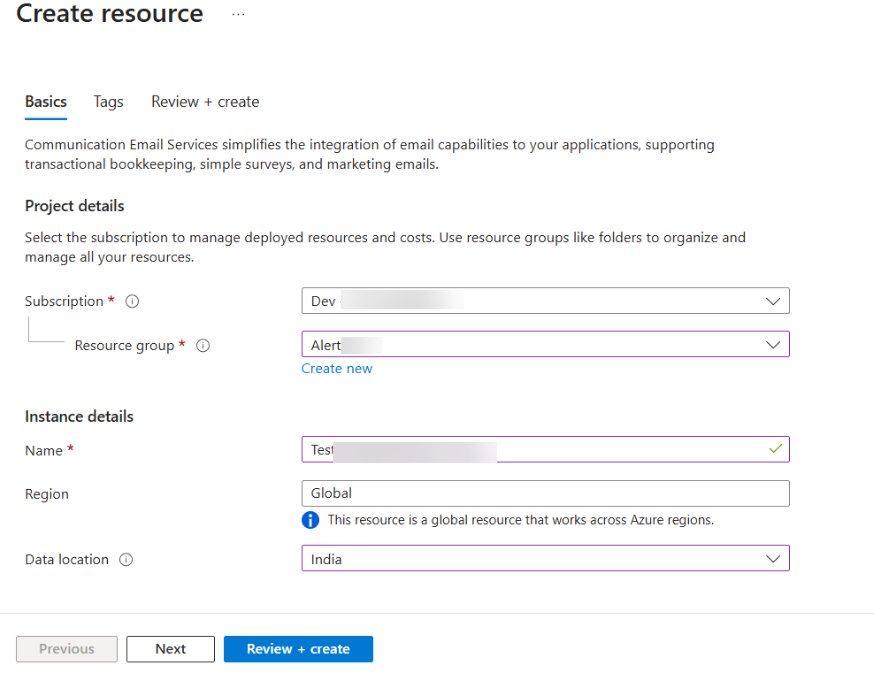
Create an Email Communication Service resource
Email Communication Service enables transactional email delivery through Azure Communication Services.
-
In the search bar, search for Email Communication Services.
-
Select Email Communication Services, and then click Create.
-
Select the appropriate subscription.
-
Select an existing resource group or create a new one.
-
Enter an instance name.
-
Select the appropriate data location.
-
Click Review + Create.
-
After validation completes, click Create.
Configure a domain for Email Communication Service
You can configure either an Azure-managed domain for testing or a custom domain for production deployments.
Configure an Azure-managed domain
Use this option for testing or evaluation environments.
-
Open the Email Communication Service resource.
-
Go to Settings > Provision domains.
-
Click Add domain.
-
Select 1-click add.
Azure provisions a free Azure-managed domain automatically.
Configure a custom domain
Use this option for production environments.
-
Open the Email Communication Service resource.
-
Go to Settings > Provision domains.
-
Click Add domain.
-
Select Custom domain.
-
Enter the domain name.
-
Follow the verification instructions provided by Azure.
-
Update the required DNS records with your domain registrar.
Note
-
Before the domain can be used, the following statuses must show as Verified:
- Domain status
- SPF status
- DKIM status
- DKIM2 status
-
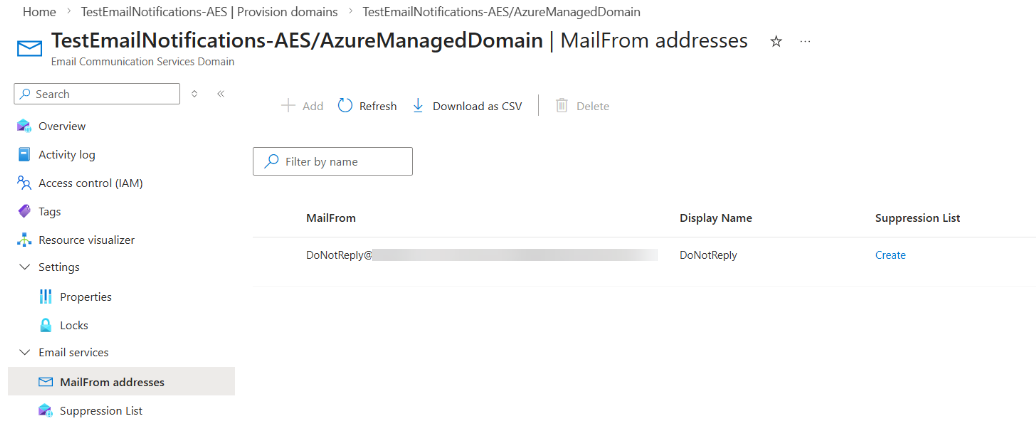
After the domain is configured, you can manage sender addresses from Domain page > Email services > MailFrom addresses.
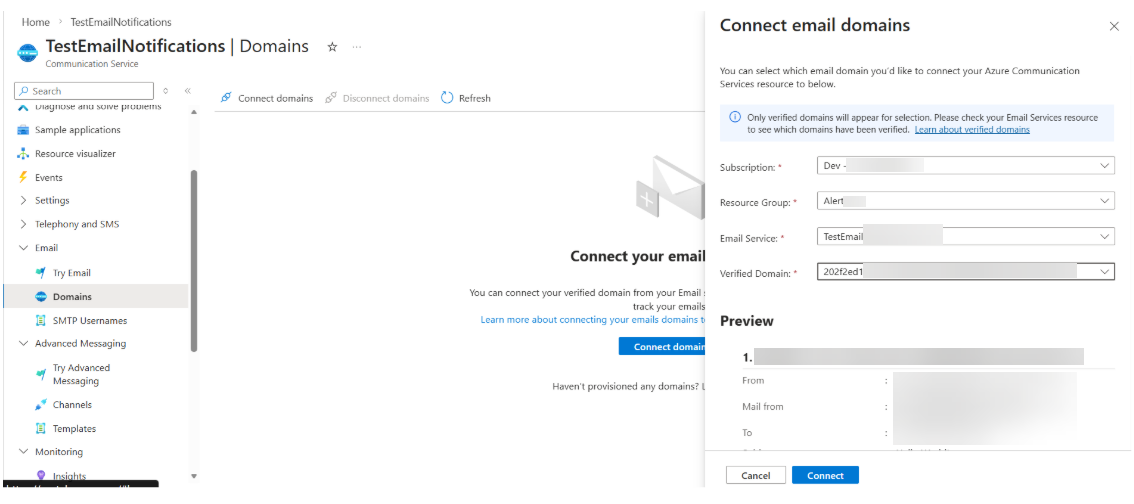
Link Email Communication Service with Azure Communication Services
-
Open the Azure Communication Services resource.
-
Go to Email > Domains.
-
Click Connect domain.
-
Select the appropriate:
-
Subscription
-
Resource Group
-
Email Communication Service
-
Domain
-
-
Click Connect.
After you complete these steps, you can proceed to configure authentication for Azure Communication Services.