After you create an export file, you can view and download the export files on the Monitoring tab. You can also view failed items for an export file.
Procedure
-
From the Command Center navigation pane, go to Protect > Exchange.
The Exchange page appears.
-
In the Name column, click the Exchange app that contains the exports you want to view or download.
-
On the Monitoring tab, click the Exports sub-tab.
A list of export files appears.
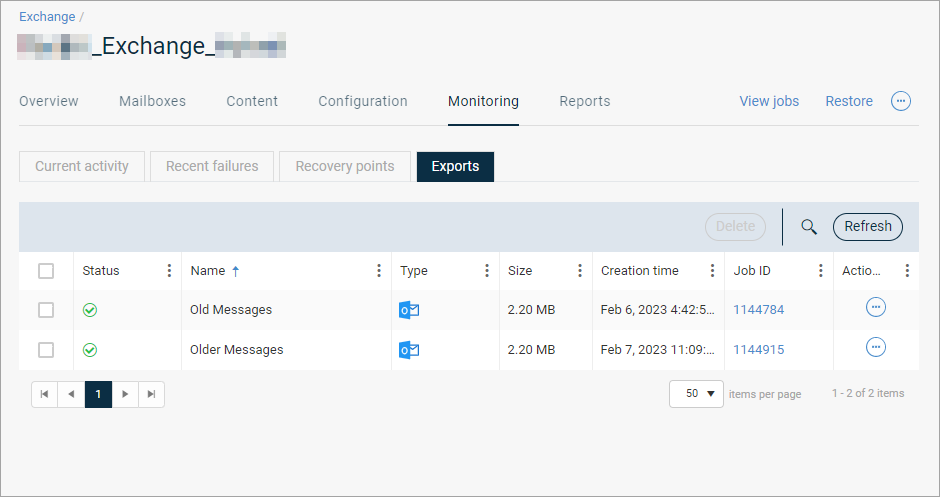
-
To view deleted items for an export file, select a file, click the action button
 , and then click View failed items.
A list of failed items appears.
-
To download the export file, select a file, click the action button
, and then click Download. -
Select a location to save the export file, and then save it.