A bootable USB drive can be created for re-imaging the Remote Office Appliance RO1200.
Before You Begin
Format a USB flash drive as UEFI with FAT32 using any suitable third party tool.
For example, using Rufus version 2.14, you can create a USB flash drive as UEFI with FAT32 using the following options:
-
Download the tool from the following link:
-
Install and run the tool as administrator.
-
Select the following options from the tool:
Note
Depending on the version used, the labels and options in the tool may vary. In such situations, choose the options that are similar to the following options.
-
From the Device list, choose your USB flash drive.
-
From the Partition Scheme and target system type list, choose the GPT partition scheme for UEFI option.
-
From the File system list, select Large FAT32(Default) option.
-
Clear the Create a Bootable Disk during option.
-
Click Start.
-
Once the formatting is completed, the USB flash drive is ready for use.
Procedure
-
Open a Web browser, and then go to https://cloud.commvault.com.
-
Click Member Login.
-
In the Cloud Services window, enter the user name and password, and then click Login.
-
Click Download Center.
-
Search for RO1200 and download the latest version of RO1200Appliance_SP<XX> zipped folder on to the local computer.
Where <XX> is the service pack number. For example RO1100Appliance_SP21.zip
-
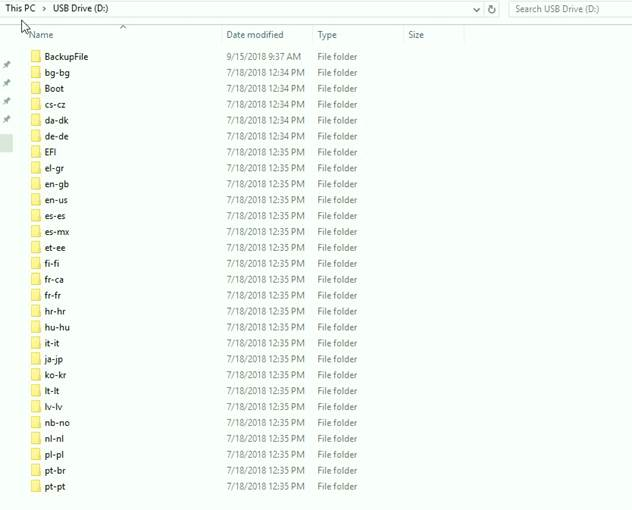
Extract the contents of the zipped file and copy the contents to the bootable UEFI USB flash drive.
Note
Copy only the extracted files. Do not copy the folder.
The contents of the USB drive should be similar to the following:
-
Use the bootable USB flash drive to start the appliance.
What to Do Next
After configuring the bootable USB drive, reimage the Remote Office Appliance RO1200. For more information, see Re-Imaging Remote Office Appliance RO1200.