You can integrate the Clumio service with Google for seamless user authentication. Follow the steps below to configure Google IDP as a Single Sign On service for Clumio.
Prerequisites
Ensure that you have the following before you start configuring Google as an IDP:
-
Google account with admin privileges
-
Clumio account with Super Admin Role
Enable Google integration with Clumio
In Google
-
Log into the Google Admin Console.
-
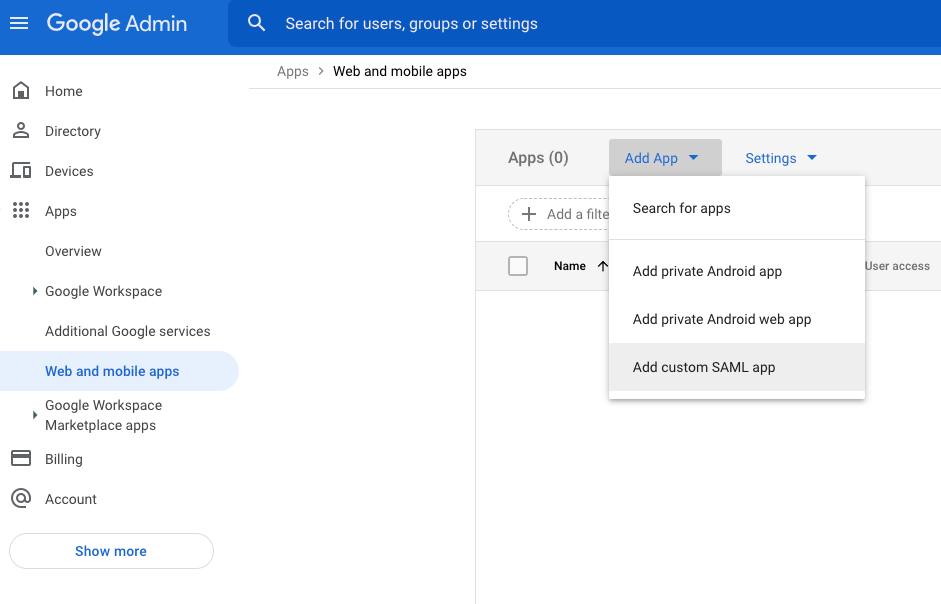
Go to Apps > Web and mobile apps.
-
Click Add App > Add custom SAML app
-
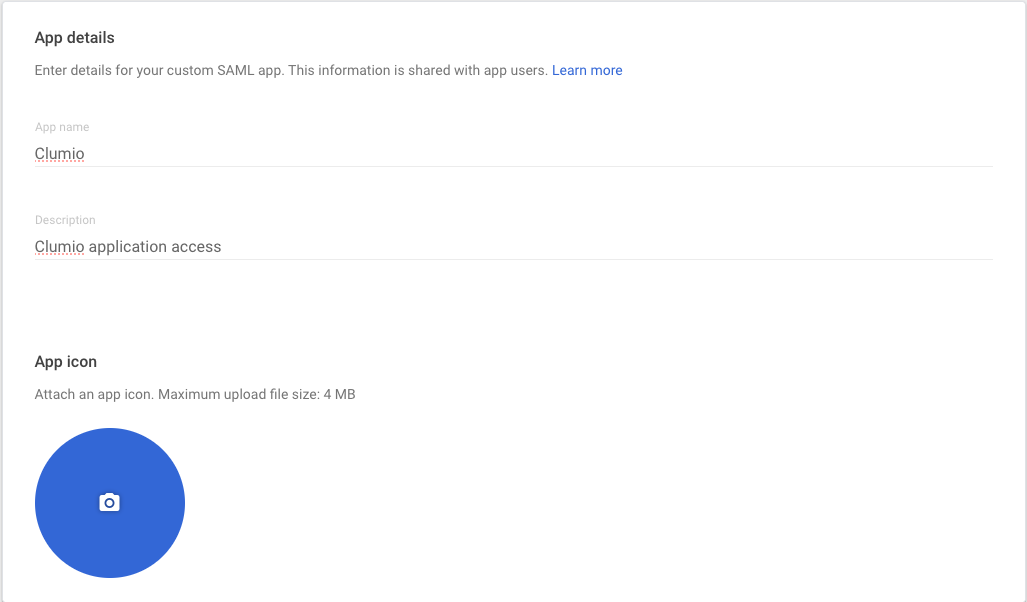
Enter the App Name and then click Continue.
-
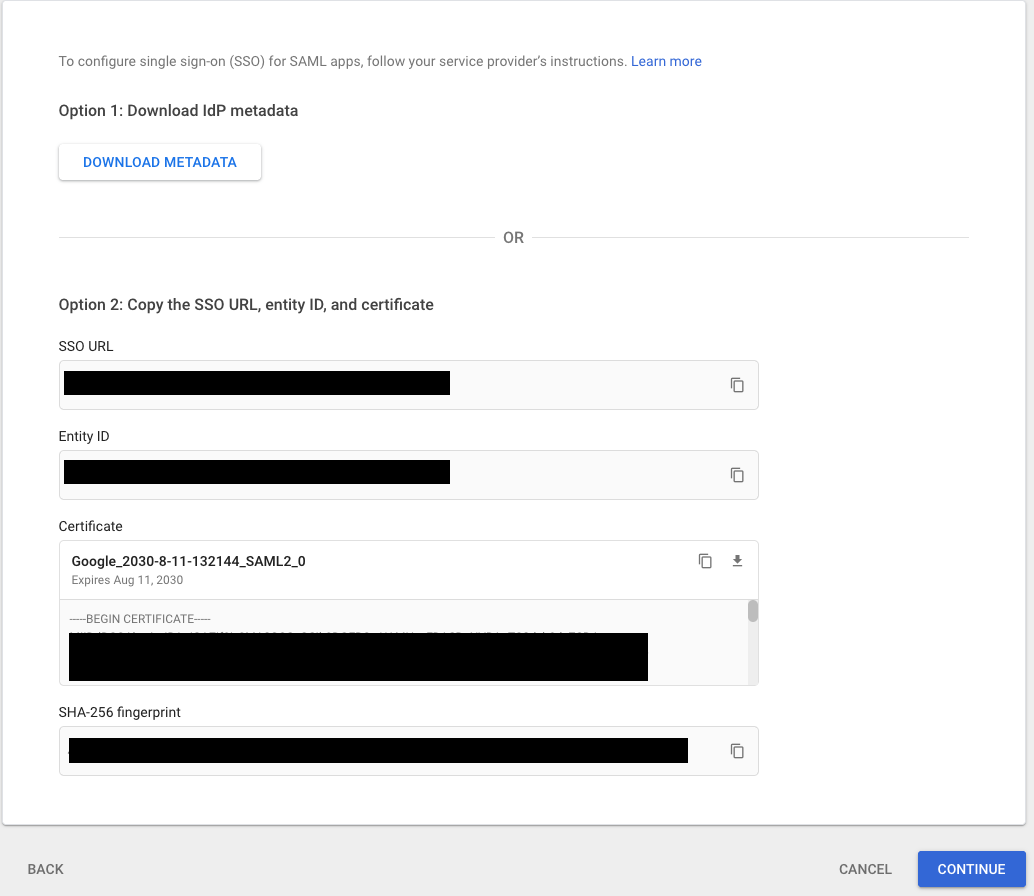
Click Download Metadata to download the metadata, and then click Continue.
-
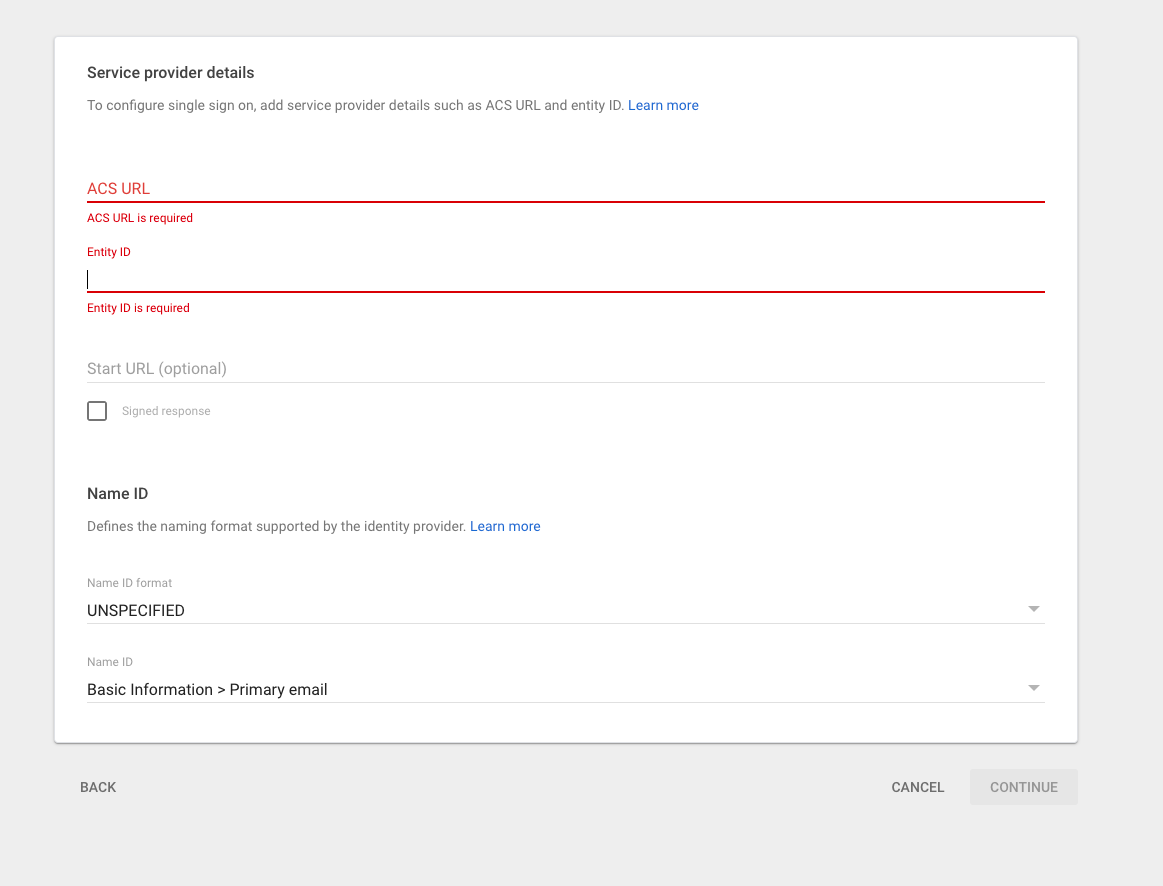
The following screen appears:
-
From step 4 in the Clumio setup below, copy the following:
-
Audience restriction to Entity ID
-
ACS URL to ACS URL
-
-
Ensure that the Signed response check box is selected.

-
Click Continue with all the other default settings.
-
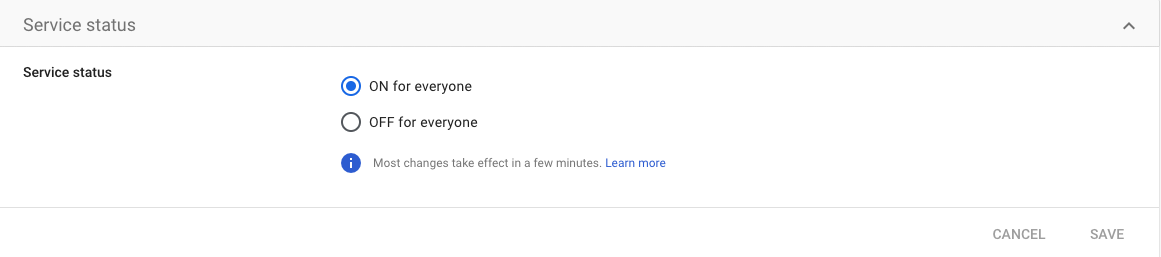
Turn on the app for appropriate users or organizational units.
-
Click Save and then return to the app.
-
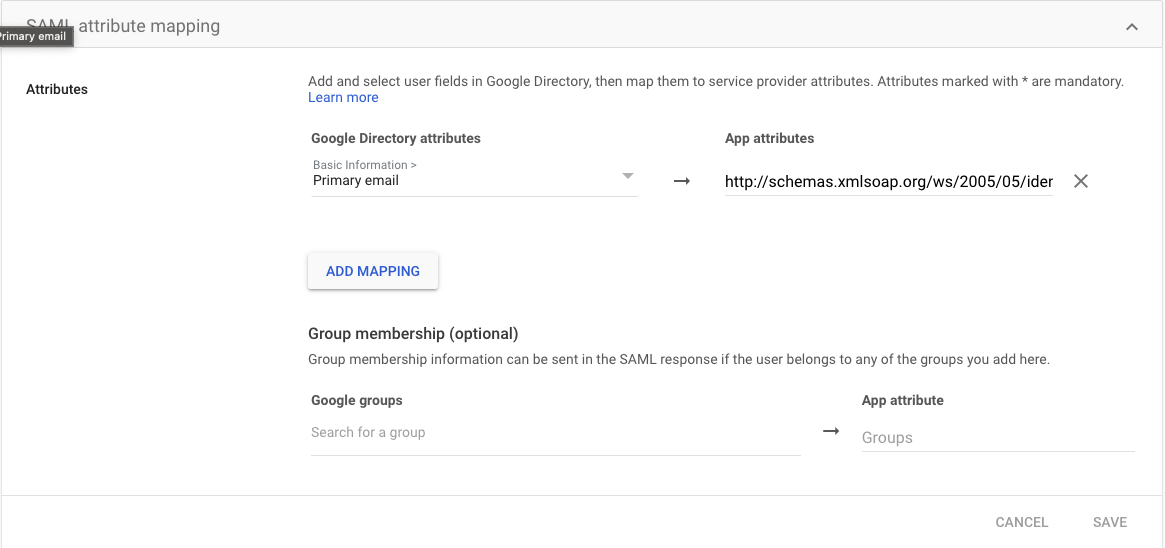
On the SAML attribute mapping screen, make sure that the primary email maps to: http://schemas.xmlsoap.org/ws/2005/05/identity/claims/emailaddress.
-
Proceed to complete the setup in Clumio.
In Clumio
-
Log on to Clumio.
-
Navigate to Settings > Access Management > Authentication (SSO/MFA).
-
Click Configure SSO.
-
Copy the Audience Restriction, Assertion Customer Service (ACS) URL, and the Sign-On URL.
This information is needed for step 7 on the IdP side setup, above.
-
Scroll down and upload the metadata retrieved from the IdP.
You can use the URL, upload the metadata XML file, or configure it manually.
-
Click Save Configuration and then click Test with my Account.
A new tab will open to test the SSO connection.
-
Once the connection test is successful, click Activate SSO.
This step is important for SSO enablement.
- Optionally, enable the check box to send emails to notify all users of the SSO enablement, or else click Enable.
Note
For any user to utilize Clumio login through Google SSO, the user needs to be explicitly added from the Clumio UI (Settings > Access management > Users).