You can respond to email messages from your User Mailbox (hybrid) self-service dashboard. You can reply or reply all to an email message.
To be able to reply to message, ensure you have enabled message replies.
Procedure
-
From the navigation pane, go to Protect > Exchange.
The Exchange Overview page appears.
-
Click the user account in the upper-right area, and then go to View > Self-service view.
The Self-service dashboard appears.
-
On the Self-service dashboard, in the Exchange section, click Restore.
The message selection page appears.
-
From the email list, select a message.
In the right pane, a preview of the message appears.
-
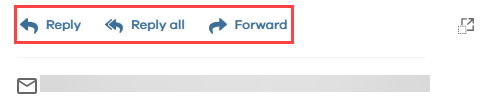
You can perform the Reply or Reply all functions from the message preview pane:
-
Based on your requirement, click Reply or Reply all.
A draft message screen appears.
-
Fill out the fields you require, and then click Send in the upper-left area of the page.
-
To: Enter the email address of the recipient.
-
Cc: Enter the email address of the recipient you wish to keep in Cc.

-
Note
-
You can add Bcc recipients using the Bcc button.
-
You can also insert email attachments using the Insert button.
-
When you select the Reply all option, the To and Cc fields will be auto-populated based on the message you are responding to.
-