An incremental backup can be run either before or after a synthetic full backup.
-
Running an incremental backup before the synthetic full ensures that any new or recently changed data is included in the synthetic full.
-
Running an incremental backup after the synthetic full ensures that any new or recently changed data since the backup that occurred prior to the synthetic full, but was not included in the synthetic full, is backed up by the incremental.
The sections below describe the steps to run an incremental backup before or after a synthetic full backup:
-
In the CommCell Browser, expand Client Computers | <Client> | Notes Documents | <Partition> |< Backupset>.
-
In the <Backupset> tab, right-click <Subclient>, and then click Backup.
-
In the Backup Options dialog box, select Synthetic Full.
-
Select Run Incremental Backup, and then select Before Synthetic Full or After Synthetic Full options.
-
Click OK.
In the Job Controller tab, you can track the progress of the job. When the backup has completed, the Job Controller displays Completed.
Verifying Synthetic Full Backups
This option ensures that files that have not been backed up by incremental jobs since the last full backup are backed up by the next incremental.
For example, if you perform the conventional full backup only once for a given subclient and then perform incremental (or differential) backups and periodic synthetic full backups. After the conventional full backup, a file is added to the subclient and the file has a time stamp older than the time of full backup. In this case, the file will never be backed up. Eventually, such files might be pruned and no backup of such files will be available.
The illustration explains the need to verify synthetic full backups.
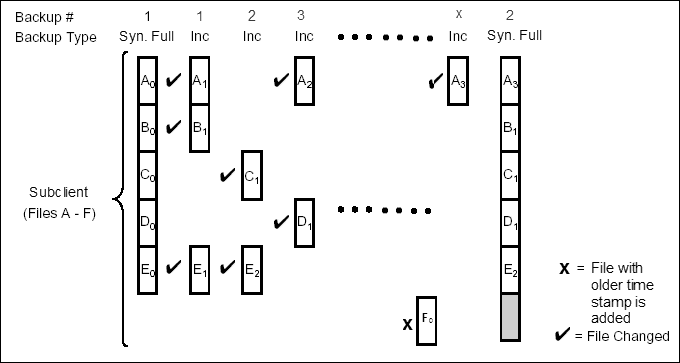
In order to overcome this problem, periodically verify the synthetic full backups job.
-
In the CommCell Browser, expand Client Computers | <Client> | Notes Documents | <Partition> |< Backupset>.
-
In the <Backupset>tab, right-click <Subclient>, and then click Backup.
-
In the Backup Options dialog box, select Synthetic Full.
-
Click Advanced.
-
In the Advanced Backup Options dialog box, click the Data tab.
-
Select Verify Synthetic Full. Click OK to close the Advanced Backup Options dialog box.
-
Click OK.
Accelerated Synthetic Full Backups (DASH Full)
When a storage policy copy is deduplicated, synthetic full backups can be created in an accelerated mode to significantly reduce the copy duration. This is done by identifying and transferring the data signatures (instead of the data itself) to the target wherever possible.
To enable DASH full on a storage policy copy, see Modifying a Storage Policy Copy Deduplication Settings.