You can mark anomalies and threats for resources as safe after they have been investigated and verified as safe (for example, after reviewing threat findings, analyzing Threat Hunting results, or obtaining validation from a Security Operations Center).
When you mark anomalies and threats as safe, they are removed from the Threat Scan dashboard. Historical scan and investigation data is retained for auditing and future reference.
Getting Started
-
From the Command Center navigation pane, go to Secure > Threat scan.
The Threat Scan page appears.
-
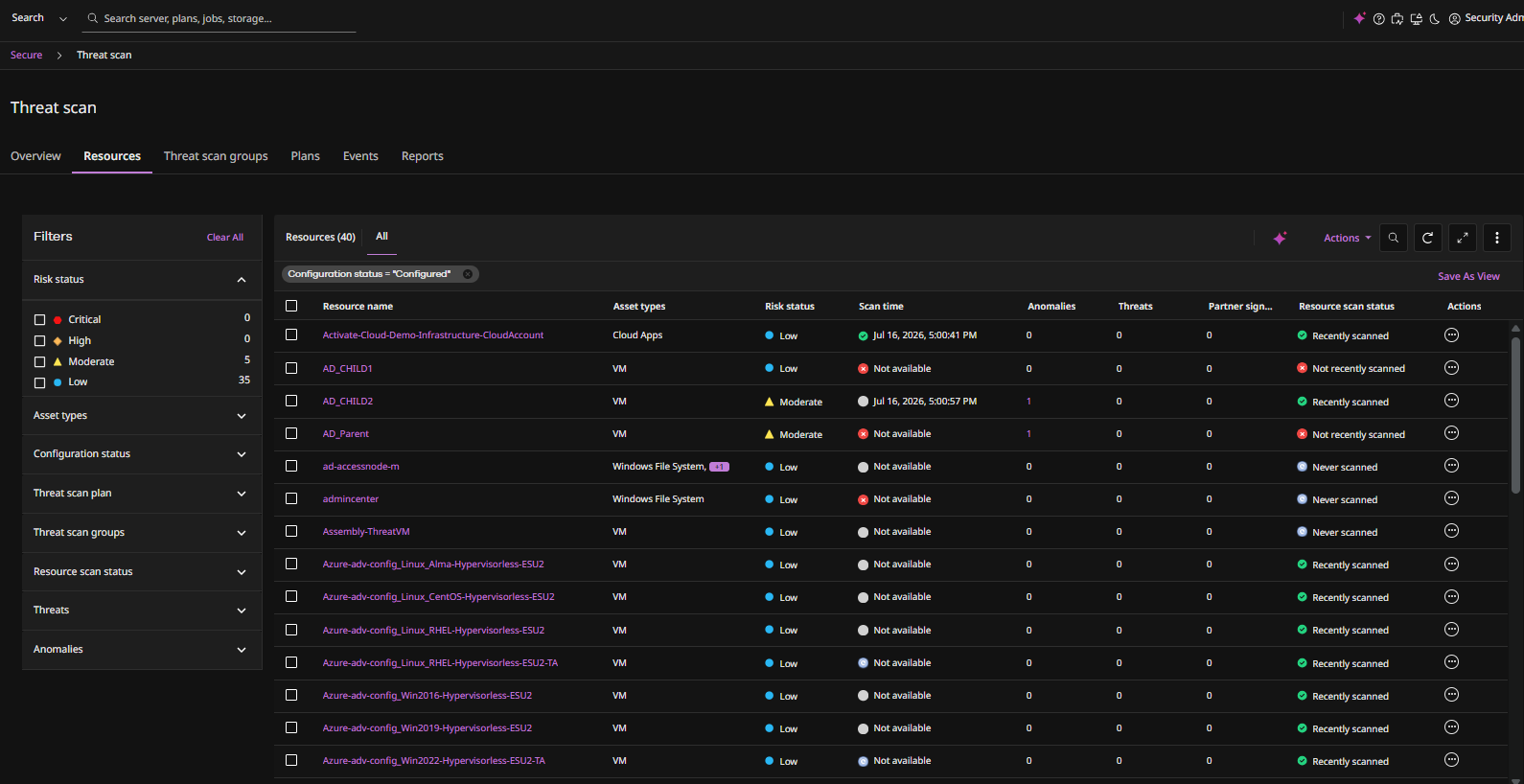
Click the Resources tab to view the resources that are currently scanned by Threat Scan.
Marking Anomalies as Safe
-
If a resource displays a value in the Anomalies column (indicating that anomalies are associated with the resource) and you have validated those anomalies as safe, click the Actions button
 for the resource, and then select Mark safe anomalies.
You can also select multiple resources and then click Action > Mark safe anomalies.
A confirmation dialog box appears.

-
Click Save to mark the anomalies safe.
A message appears, indicating that anomalies marked as safe will reflect on all copies after 24 hours.
The operation is recorded in the audit trail. For more information, see Viewing the Audit Trail.
Marking Threats Safe
-
If a resource displays a value in the Threats column (indicating that threats are associated with the resource) click the hyperlinked value.
The Threats tab for that resource appears, showing all threats.

-
Click the Actions button
for a threat, and then select Mark safe. You can also select multiple threats and then click Action > Mark safe.
A confirmation dialog box appears.

-
Click Save to mark the threats safe.
A message appears, indicating that threats marked as safe will reflect on all copies after 24 hours.
The operation is recorded in the audit trail. For more information, see Viewing the Audit Trail.