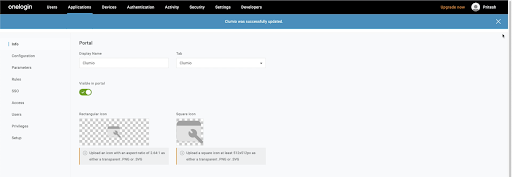
You can integrate the Clumio service with OneLogin.
Prerequisites
Ensure that you have the following before you start configuring OneLogin:
-
A OneLogin account with admin privileges
-
The Clumio Entity ID and Assertion Consumer Service URL
For information about retrieving this information from the Clumio dashboard, see Getting SSO service provider information from Clumio dashboard.
Configure OneLogin as an IdP for Clumio service
-
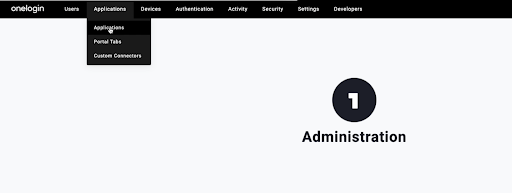
Log on to your OneLogin dashboard, click Applications > Applications
-
ClickAdd App.
-
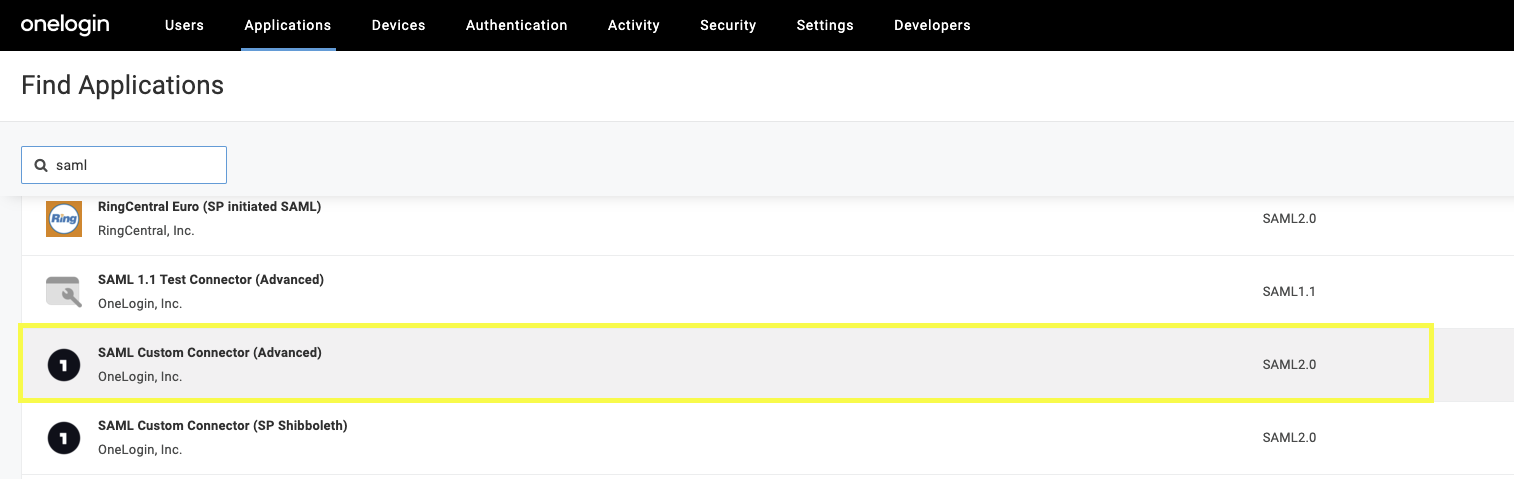
Search for SAML and click SAML Test Connector (Advanced) SAML 2.0.
-
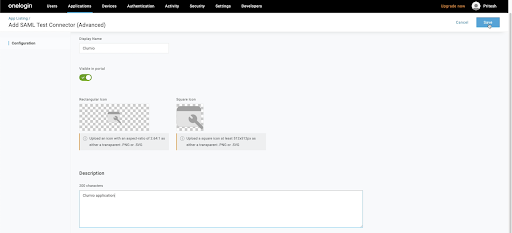
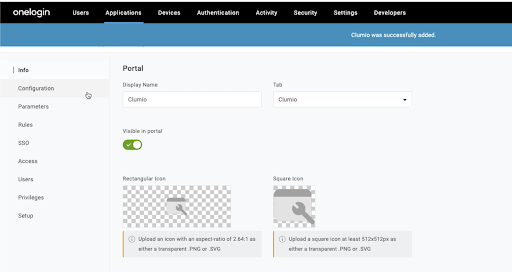
Type "Clumio" in the Display Name and type Clumio Application in the Description. Click Save.
-
After saving the app, click Configuration.
-
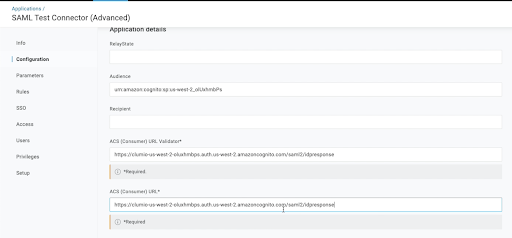
Under Configuration, type the Entity ID from the Clumio dashboard in the Audience field.
-
Under ACS (Consumer) URL Validator and ACS (Consumer) URL fields, copy the ACS Consumer Service URL obtained from the Clumio dashboard.
-
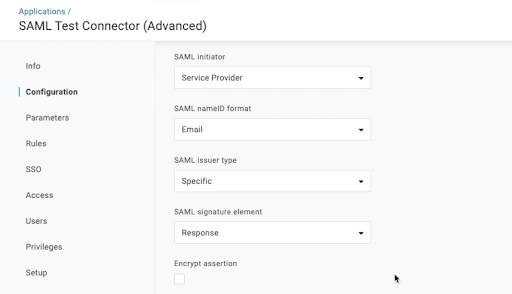
Under SAML initiator, select Service Provider.
-
Ensure that you select Email from the drop down list for SAML nameID format .
-
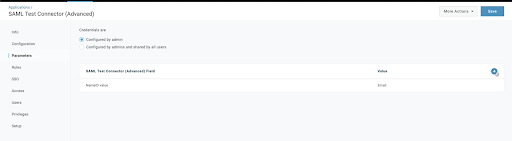
Click Parameters then click the + icon.
-
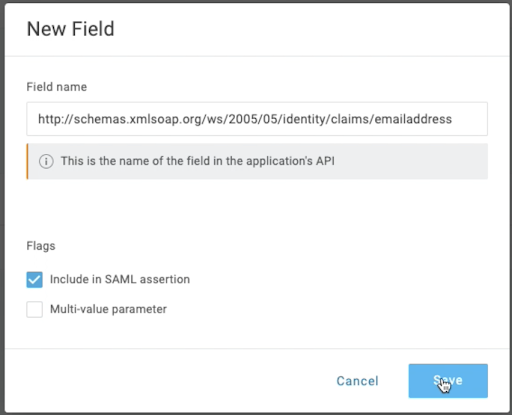
In the New Field section, configure the Field name as follows: http://schemas.xmlsoap.org/ws/2005/05/identity/claims/emailaddress. Select the check box for Include in SAML assertion and then click Save.
-
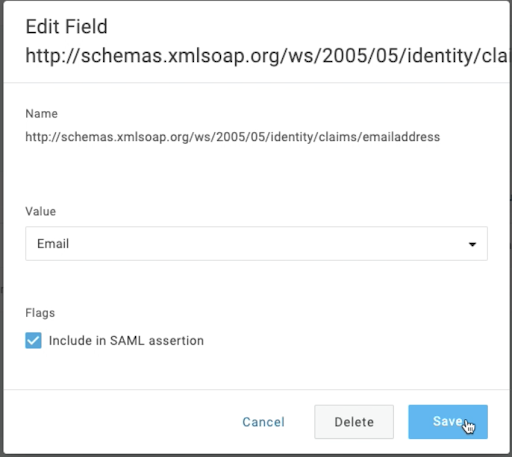
Select Email from the Value drop down menu, and then click Save.
-
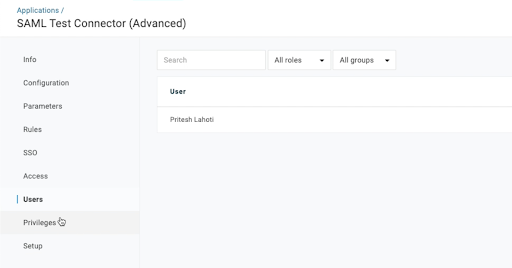
Under Users, add the users you wish to grant access to the Clumio dashboard.
-
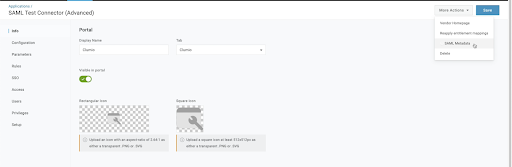
Go back to Info section. Under More Actions, click SAML Metadata to download the metadata file. The Clumio service will need this file to be publicly accessible via a URL.
-
Click Save after downloading the SAML metadata file.
The Clumio app will be successfully updated.